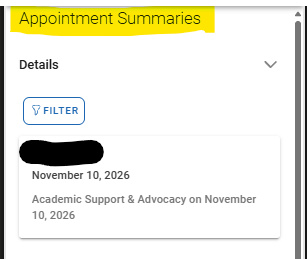
Students View: Appointment Meeting Summaries
Students can view Appointment Summaries in Navigate through both the desktop website (and the Navigate Student mobile application
Using a laptop or desktop
- Go to wcupa.navigate.eab.com and sign in with your WCU credentials.
- Open the student homepage.
- Select My Docs or Reports.
- Choose Appointment Summaries.
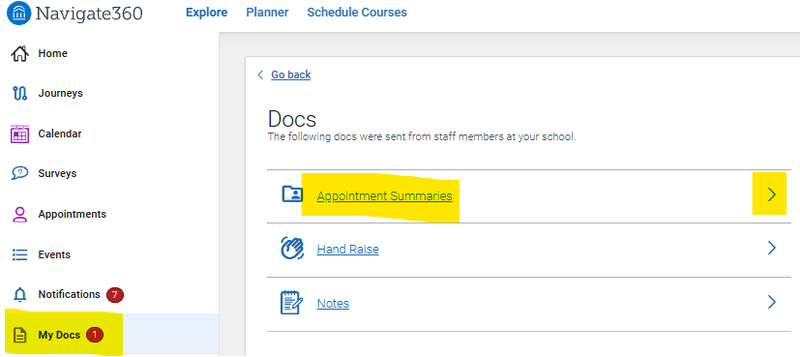
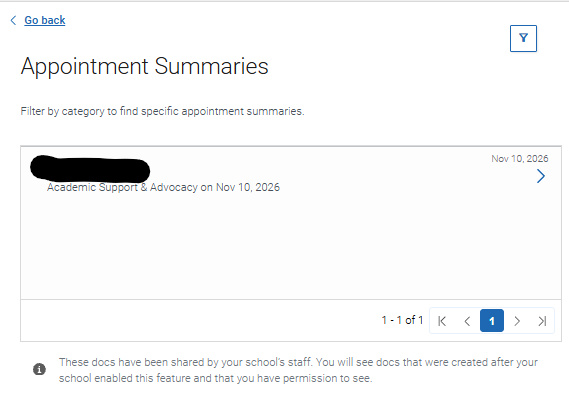
- Find the appointment summary you want to view and select it to read the details.
On your phone
- Open the Navigate Student app. Need help downloading it?
- Download instructions can be found at wcupa.edu/Navigate
- Sign in with your WCU credentials.
- Tap the Application Icon.
- Select MyDocs.
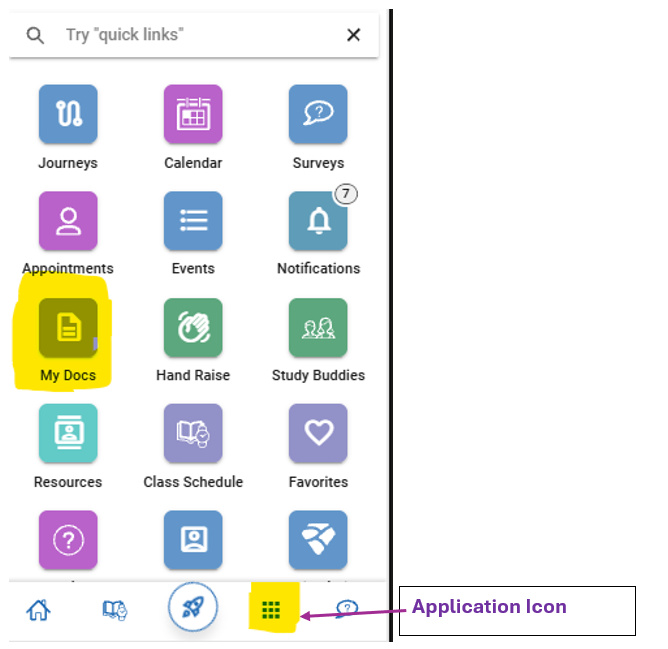
- Find Appointment Summaries.
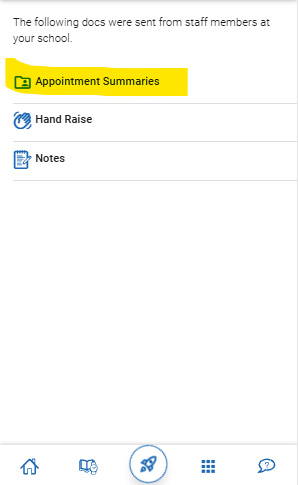
- Then tap on the summary you want to read.