
Spring 2026 Newsletter
- Welcome Back Checklist
- Key Reminders and Best Practices
- Digital Accessibility Update: What You Need to Know
- Accessibility Tools
- New D2L Features
- Zoom Interface Update
- Classroom Technology Updates
- Moonshot for Equity Initiative: Technology Access
- Keeping WCU Cyber Safe
- Training & Professional Development
- Mobile Apps to Stay Connected
- Remembering Dr. Jim Fabrey
Welcome Back Checklist
IS&T is here to keep you connected and supported as we step into Spring 2026. With winter's chill still in the air, our goal is to ensure your technology works seamlessly so you can focus on what matters most: collaborating, learning, and teaching. This newsletter is your trusted source for IT updates, helpful reminders, and best practices to stay productive throughout the semester. Review the Spring 2026 Back to Campus Checklist.
Key Reminders and Best Practices
Here are some IS&T tips for returning to campus, including additional resources for instructional technologies, classroom technologies, computer labs, software, and hardware to help your semester get off to a great start.
- Activate your course site(s) in D2L & note course availability dates
- Update your RamCast (Mersive Solstice) client
- Update your Zoom Client - New Zoom Workplace UI design effective version 6.7
- Learn how to manage your technology inside and out of the classroom
- Visit the Classroom Technology Directory to verify equipment in your classroom
- Learn how to connect your laptop to a classroom display with HDMI
- Catch up on all the new and improved tools and features of D2L, Zoom, and Panopto
- Consider Bookings for scheduling office hours
- Proofpoint URL Defense: Overview, User Guide, & FAQ
Digital Accessibility Update: What You Need to Know
The Web Accessibility Task Force (WATF) led by the Office of Equal Opportunity and Compliance and made up of staff from TLC, OEA, Web, and IS&T are continuing their work to provide guidance, training and resources to help our campus become more digitally accessible. These resources can be found on the Website and Digital Accessibility resource page.
Users can strengthen their accessibility habits by focusing on the Core 7 Concepts for digital accessibility:
- Alt Text
- Contrast
- Headings
- Links
- Lists
- Tables
- Video & Audio
Accessibility checkers help identify accessibility issues with digital content, but they're not perfect. Start with Microsoft's Accessibility Checker. Then utilize YuJa Panorama but know that it may flag additional items because it runs a deeper, file-level review. Look for the green thumbs up. This means you're on the right track and your content is meeting most accessibility standards. Aim for a 100% rating in YuJa on your documents.
Learn more about digital accessibility
- LinkedIn Video Collection – Digital Accessibility Training Resources
- Accessibility Resources
- ADA Checklist for Faculty
- ReadSpeaker in D2L
- Editing captions in Panopto videos
Accessibility Tools
New: YuJa Panorama Digital Accessibility Tool
In December 2025, YuJa Panorama was added to all D2L course sites. YuJa Panorama is an accessibility tool designed to help faculty identify and improve accessibility in course materials, supporting our shared goal of ensuring that West Chester University publishes accessible digital content that meets the WCAG 2.1 AA standard.
YuJa Panorama integrates directly with D2L to improve accessibility of course content. Everyone, including students and staff, can also use YuJa outside of D2L in a tool called DocHub to check file accessibility. It automatically scans uploaded materials (PDF, Word, PowerPoint, etc.) and provides:
- Accessibility Reports – Instructors see real-time feedback and tips to improve their documents.
- Alternative Formats – Students can instantly download course materials in formats that work best for them (e.g., audio, ePub, electronic braille, immersive reader).
- Accessibility Score Indicators – Simple colored gauges (red, orange, green) show the accessibility level of each file.
Please refer to IS&T's KB articles on YuJa for more information: YuJa: Getting Started.
Zoom Accessibility Features: In-Meeting Captioning & Transcription Tools
As part of our ongoing commitment to accessible and inclusive communication, the Office of Information Services & Technology (IS&T) would like to highlight key in-meeting Zoom features that support flexible, user-friendly engagement for all participants. Zoom offers two distinct tools that display spoken content in text format during live sessions: Automated Captions and Live Transcription. During meetings, hosts and participants can enable captions and transcription for their own individual meeting view.
For detailed instructions on these tools and best practices, visit: Zoom: Automated Captions & Transcripts (WCU Knowledge Base).
New D2L Features
D2L has recently implemented two new, highly requested features to improve the instructor and student experience and streamline course management workflows.
Print Quiz
The Print Quiz feature in D2L allows faculty and staff to do the following:
- Download and print a paper copy of a quiz
- Download and print an answer key
- Create different versions of a quiz for offline use
Please refer to our D2L: Print a Quiz KB article for more information and instructions.
Reopen a Quiz
D2L now allows faculty to reopen a quiz for students who have already submitted a quiz attempt. This is useful in situations where a student's quiz may have timed out and automatically submitted or where a student accidentally submitted a quiz without finishing it.
Please refer to our D2L: Reopen a Quiz KB article for more information and instructions.
Zoom Interface Update
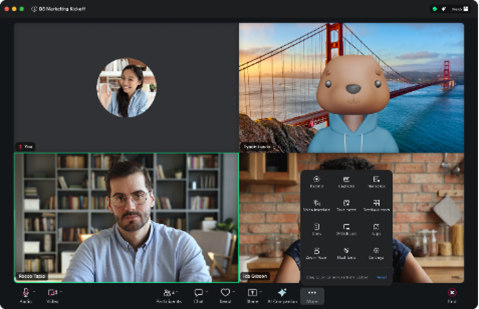
In December 2025, Zoom updated their interface to simplify the user experience, including redesigning the primary toolbar and enhanced host tools. Many settings and tools are now consolidated into one area with less hunting for what you need. Please refer to Zoom's recent blog post detailing the changes to the in-meeting desktop experience, mobile meetings, team chat and sidebar navigation, and Zoom desktop application.
If you've updated Zoom to the newest version, 6.7 or later, you'll be met with an interface that looks like this:
Classroom Technology Updates
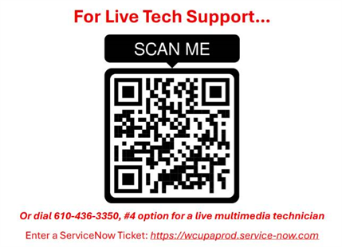
Classroom audiovisual support is available by scanning the QR code posted at each instructor station which will directly connect you to a live multimedia technician. Users can also dial 610-436-3350 and press the #4 option for classroom support or submit a ServiceNow request.
Moonshot for Equity Initiative: Technology Access
Laptop Programs:
IS&T offers a variety of lending options for students as part of the Moonshot for Equity initiative with the goal of providing equitable access to technology resources for students demonstrating need for the equipment. Students can visit the Student Computing Resources website to learn more about each of these programs, available computer labs, and educational discounts on equipment from retailers.
Additionally, the Provost's Office, Deans and IS&T have allocated resources to maintain a supply of Windows and macOS laptops that will now be available for adjunct faculty. Adjunct Faculty can submit a request using the Adjunct Faculty Loaner Laptop Form.
Software Access Via RamCloud:
RamCloud enables seamless streaming of applications directly to a student's web browser on any device. It tightly integrates with the university's Learning Management System D2L, and university storage services like OneDrive and Google Drive. Watch the RamCloud NextGen Promotional Video or log in at https://ramcloud.wcupa.edu.
All WCU students have access to Adobe's web-based creative platform Adobe Express. Additionally, students enrolled in academic programs requiring Adobe products to complete coursework will have no-cost access to the full Adobe Creative Cloud Pro suite.
Access to Adobe for Students:
Keeping WCU Cyber Safe
A secure campus starts with informed users. Your vigilance is our first line of defense. Here are a few quick tips to help protect your data and our community:
- Use Strong, Unique Passwords – Don't reuse passwords across accounts. A password manager can help.
- Enable Multi-Factor Authentication (MFA) – It's a simple way to add powerful protection.
- Think Before You Click – Phishing emails are common. If something feels off, don't engage—report it!
- Update Your Devices – Keep your operating system and apps current to patch security holes.
- Lock It Down – Never leave devices unattended and always lock your screen.
Reminder: WCU prioritizes annual cybersecurity awareness training to help you better understand potential threats and learn how to handle them effectively. WCU will launch cybersecurity training this semester. Please be on the lookout for this training.
Spam Filtering through Proofpoint
Proofpoint quarantines possible spam or bulk messages in a user's Spam Digest. It also automatically scans URLs and determines if it's a known malicious link. Users can also report suspicious messages. For more information on Proofpoint, please refer to the Proofpoint: Overview, User Guide, & FAQ KB article.
Training & Professional Development
FAST Faculty & Staff Training
The Faculty and Staff Training (FAST) unit supports WCU faculty and staff in becoming proficient in various applications and providing best practices in trending platforms. We offer training in classroom technology, Microsoft 365, D2L, Panopto, Zoom, Digital Accessibility, and more. Courses are designed to accommodate all levels of learning and allow users to build on acquired skills. You can also locate other training in the WCU Training Directory.
To sign up for FAST training:
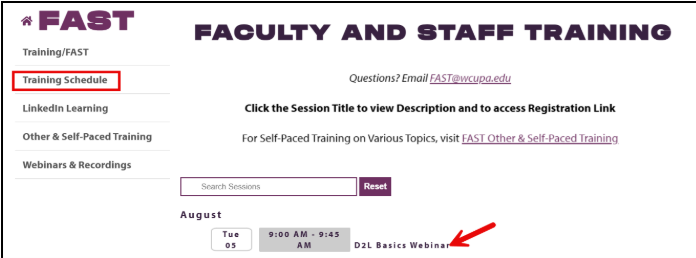
- Visit the FAST training website.
- Select "Training Schedule" from the left-hand menu to view the current training schedule.
- Click the session title and then the registration link.
- Enter your WCU credentials and submit your registration details.
Getting Started with LinkedIn Learning
All students, faculty and staff have access to LinkedIn Learning, an on-demand learning solution library of thousands of business, creative, and technology video training tutorials. LinkedIn Learning is available on any device (computer and mobile) and offers students, faculty, and staff access to a vast library of online courses, enhancing skills development and career preparation.
Faculty can integrate LinkedIn Learning video tutorials within their D2L courses to supplement course content. For more information on this process, please refer to the D2L: Create a Link in Content KB article.
Annual RECAP Conference
Please save the date for West Chester University's RECAP 2026 Conference on Thursday, May 14, 2026.
This year's theme, Designing the Possible: Inclusive, Insight Driven, Immersive invites Higher Education professionals to share concrete practices that ensure belonging by design, leverage learning data responsibly, and thoughtfully engage with immersive and AI-enhanced experiences through structured, evidence-based approaches.
Find more information on submitting a proposal and registration details as they are confirmed on the RECAP website.
Mobile Apps to Stay Connected
Brightspace Pulse App (Students)
Brightspace Pulse is a free mobile app available for iOS and Android devices that can help you stay connected and on track with your courses in D2L Brightspace. Download on iOS or Android.
Mersive Solstice "RamCast" (Students, Faculty & Staff)
Allows users to wirelessly connect to WCU presentation systems in classrooms, conference rooms, and other meeting spaces. RamCast Website Download on iOS or Android.
ServiceNow Now Mobile (Students, Faculty & Staff)
Search for support articles, submit a ticket or interact with the Virtual Agent. Download on iOS or Android.
Remembering Dr. Jim Fabrey

Jim began his tenure at West Chester University in the fall of 1975 as an Assistant Professor, earning promotion to Associate Professor in 1978 and Full Professor in 1982. He served as a Full Professor until spring 2020, marking an extraordinary 45-year career at WCU. Throughout his time at the University, Jim provided exceptional service in a wide range of leadership roles, including: seven years as Director of Academic Computing (1985–1992), ten years as Director of Liberal Studies (1992–2002), one year as Assistant Dean for Student Affairs in the former College of Arts and Sciences (1996), ten years as Special Assistant to the Vice President of Information Services (2008–2017), and 18 years as Chairperson of the Department of Computer Science (2002–2020). He was the department's second chairperson and a foundational leader throughout its evolution.
Remarkably, Jim's career at WCU began before the modern Internet existed. When he arrived, there was no University network and no web presence. Through his collaboration with the Office of Academic Computing, Jim played an instrumental role in the origins of WCU's connectivity. As an example, Jim was instrumental in the original domain registration of www.wcupa.edu — and that WCU would have been www.wcu.edu had Western Carolina University not claimed the domain a few weeks prior.
At one of his recognition ceremony Jim reflected on his early contributions:
"In my previous life, as the first Director of Academic Computing from 1985–1992,
I had a staff of five people plus a team of six graduate assistants. There was no
Web Team yet—because there was no web! The Telecom team was actually the Telephone
team—we had no network. We connected to the Internet through an arrangement with Villanova
University. We have really come a long way."
Jim's leadership, mentorship, and steady guidance shaped generations of students, faculty, and colleagues. His impact on technology, academics, and institutional growth leaves a lasting legacy at WCU. We are profoundly grateful for his many years of wisdom, dedication, and service.
For more information about his life, see his full obituary.
West Chester University | Information Services & Technology
To learn more about Information Services & Technology, visit the IS&T website
or to speak with a LIVE Agent dial 610-436-3350
Reset your password | Manage your Spam Filter | IS&T Help Desk
Get Started with DUO | IS&T Org Chart