
Degree Clearances
Last edit date: 2/2/2026
Audience: Faculty (Designated Degree Clearers)
Purpose: This guide provides instructions for designated faculty clearers to approve or not
approve a student’s completion of program requirements for graduation.
| Contents |
|---|
| Access Degree Clearances |
| Review Resources for Clearing Degrees |
| Clear Students for Graduation |
| Add a Degree Audit Deficiency Note |
| Submit Degree Clearances |
| Changes After Submission |
Access Degree Clearances
The Degree Clearances are accessed through a secure link shared via email. Faculty login with their WCU Single Sign-On (SSO). All faculty are able to access Degree Clearances; however, departments designate which faculty members complete degree clearances for each program.
Review Resources for Clearing Degrees
Resources to use when reviewing student eligibility for graduation:
Clear Students for Graduation
- Use the dropdown menus to choose: Term, Level, Department, Type and Field of Study, then select Show Results (Fig. 1).
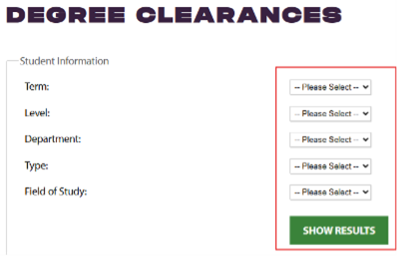
Fig. 1 - Review the Current Filters displayed at the top of the page to confirm your selections (Fig. 2).
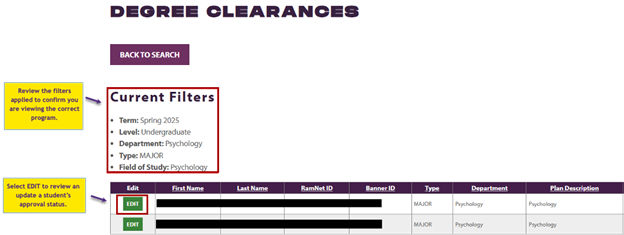
Fig. 2 - Select Edit next to the student you wish to review (Fig. 2).
- In the Approval Status column, choose Approved or Not Approved from the dropdown (Fig. 3).
- If Not Approved is selected:
- Add a Degree Audit Deficiency Note for the student.
- Confirm the Deficiency Note has been entered by selecting the checkbox (Fig. 3).

Fig. 3
Tip: If no approval status has been selected, you will not be able to save the student.
- If Not Approved is selected:
- Select Save in the Edit column to apply your changes for the student.
Tip: Each student must be edited and saved individually. Saving individual records allows departments to complete clearances over multiple sessions rather than all at once.
Add a Degree Audit Deficiency Note
When a student is marked Not Approved, a Degree Audit Deficiency Note is used to document any outstanding program requirements and communicate next steps to the student. Students are notified of the deficiency and directed to review their Degree Audit notes for details.
- Open the student’s Degree Audit.
Important: Degree Audit notes are degree specific. If a student has more than one declared program, select the correct degree from the dropdown (Fig 4). - Select the three-dot menu (⋮) and choose Notes. Then select Add a New Note.
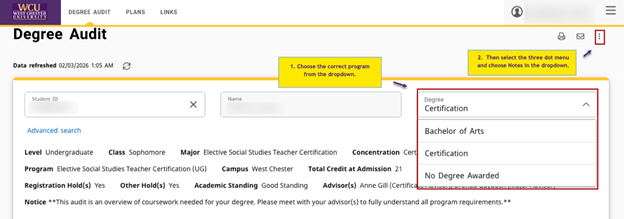
Fig. 4 - Select a note from the Predefined notes dropdown. Choose one of the notes that begins with DEGREE REVIEW for a major, minor, or certificate requirement (Fig. 5).
Do not use: DEGREE REVIEW: University Requirements Incomplete (This note is reserved for the Registrar’s Office.)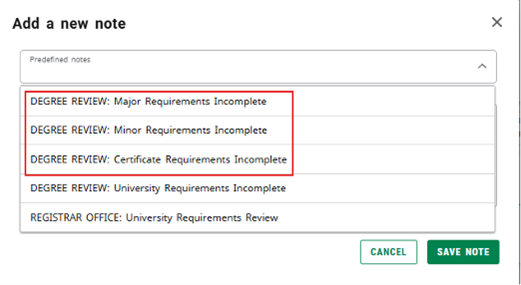
Fig. 5 - After selecting a Predefined note, it will populate in the description box and can be edited as needed. Tip: Focus on what requirement is outstanding and how the student can resolve it. Clear, concise notes are often more effective than lengthy explanations.
- Click Save Note.
Important: Degree Audit notes cannot be edited or removed. If a note is entered in error, submit a ticket for support and select Challenge with Degree Audit in the dropdown.
Submit Degree Clearances
After all students for the program have been reviewed and saved, a Submit button will appear at the bottom of the page.
- Select Submit to finalize degree clearances (Fig. 6).
- Review the confirmation message indicating that no additional changes are allowed after submission.
Important: Once submitted, entries are locked and the clearances are officially submitted for final review and conferral by the Registrar’s office.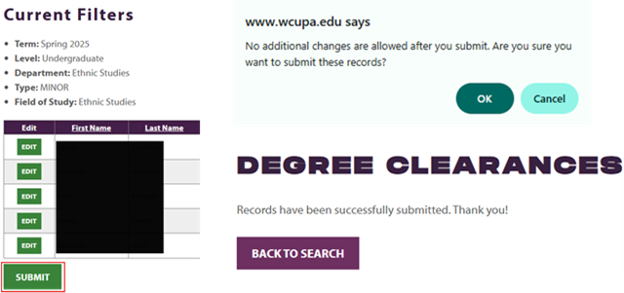
Fig. 6 - A confirmation email is sent to the submitter and the Registrar’s Office with the subject line: Graduation Clearances Complete.
If you need to submit clearances for another curriculum, select Back to Search (Fig. 7) to return to the dropdown selections. Do not use the back button on your browser.

Fig. 7
Changes After Submission
- If a department needs to make a change after submission, send an email to registrar@wcupa.edu with the student’s information and update requested.
- If a student needs to be added for clearing, the Registrar’s Office will add the student(s) to the clearance list and notify the department.
For additional assistance, submit a ticket for support.