
Degree Audit: Navigating and Understanding the Audit
Last edit date: 1/16/2026
Audience: Advisors, Chairs, Graduate Coordinators, and Staff
Purpose: This guide provides an overview of the Degree Audit in RamPortal.
Overview
The Degree Audit helps track progress toward degree completion by showing how completed, in-progress, and planned courses apply to degree requirements. It also allows users to explore how coursework may fit into other academic programs.
Navigation Option 1: Degree Audit Card
- Login to RamPortal using your WCU Single Sign On (SSO).
- Locate the Degree Audit card on your home page (see Fig 1).
- Click the Degree Audit button.
- Enter the student’s ID in the Student ID field.
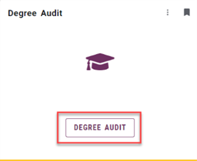
Fig 1
Navigation Option 2: Student Profile
- Locate the Faculty Center card on your home page.
- Select My Advisee Information and choose View Student Profiles and List of Advisees in the dropdown.
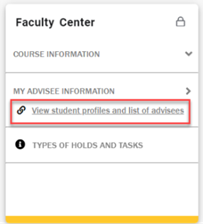
Fig 2 - Select a Term from the dropdown.
- Search for the advisee using their ID, email, or name and click View Profile.
- From the Student Profile page, select Degree Audit from the left-hand menu.
Toolbar Functions
At the top right of the Degree Audit page, you will see a set of icons that give you quick access to some important features (Fig 3):
- Print icon: Creates a PDF that you can print or share.
- Email icon: Displays your advisor’s email address.
- The three dot menu (⋮) opens a drop down with:
- GPA Calculator: Offers Graduation, Term, and Advice Calculator options.
- Course History: Displays completed courses by term including title, grade, and credits.
- Notes: Add notes or view advisor notes entered after August 4, 2024
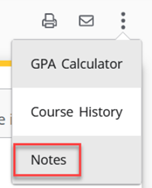
Fig 3: Example of the Toolbar and the three-dot menu drop down.
Student Information Section
Student Information is displayed at the top of the Degree Audit (Fig 4). It includes:
- Student ID and Name
- Degree(s) being pursued (with a dropdown to switch between degrees if more than one exists in RamPortal)
- Level, Class, Major, Minor or Concentration (when applicable)
- Admit Term, Admit Type, and Campus
- Holds and Advisor(s)
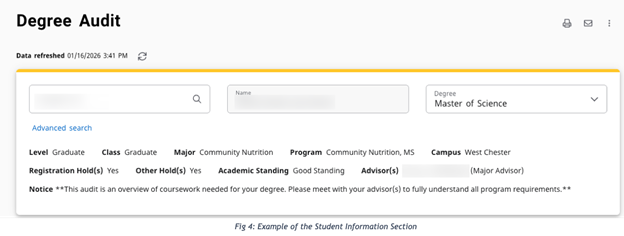
Academic Summary Section
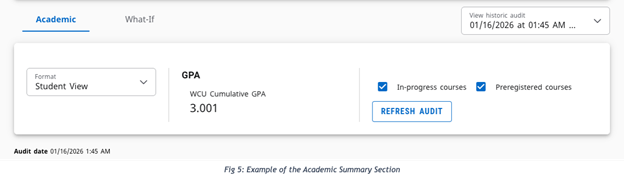
The Academic Summary Section (Fig 5) includes:
- Format options: This dropdown controls how the audit is displayed. It defaults to Student View, which provides the most information. You can also select Registration Checklist, which filters the audit to display only those courses still needed to fulfill program requirements.
- GPA: Displays the student’s current cumulative GPA. This is the only place in the audit where the overall GPA appears. All other sections will display the GPA within that specific area.
- In-Progress/Preregistered Courses: These checkboxes allow advisors to include or exclude courses that are currently in progress or scheduled for a future term. By default, both are included in the audit. Select Refresh Audit to apply new changes.
- Audit Date: Shows the last time the audit was processed. The audit updates automatically when academic changes occur, such as registration, curriculum updates, or grades are entered. A new audit can also be run manually by selecting the Refresh Audit button.
- View Historic Audit: A dropdown menu at the top right of the section lets you review previously generated
audits.
Degree Audit Requirement Blocks
The Degree Audit requirement blocks organize a student’s academic requirements into sections that display progress toward degree completion. Each block focuses on a specific requirement area, i.e., General Education, Major, or Minor.
All students will have the Degree Block and the Major Block. Additional blocks, such as minors, concentrations, or second major, will appear based on the student’s individual academic program.
Next to each requirement, you will see a symbol that represents the status:
- Green circle with a check mark: Complete
- Red circle: Not Complete
- Half-filled blue circle: In progress (pending final grade)
- See additional symbols in the legend below. This legend can also be found at the
bottom of the audit.

Degree Block
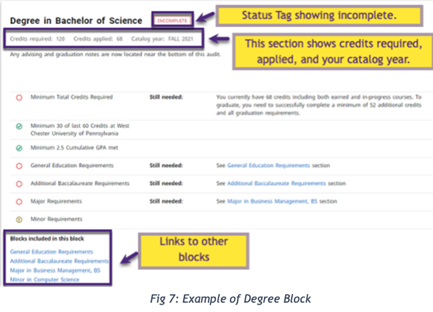
This block summarizes the student’s overall degree progress (Fig 7). It includes:
- Total credits required and applied
- Catalog year
- Links to additional blocks that make up the student’s program (i.e. General Education, Major, Minor)
- Note: This block displays only top-level requirements, like total credits and GPA
requirements. It does not list individual courses. To view detailed course requirements,
refer to the linked blocks listed under Blocks included in this block.
General Education Block
This block lists the courses required to satisfy WCU’s General Education Program. For more information on specific program courses, access the current year Course Catalog via the Academics website.
Additional Baccalaureate Requirements
This block includes courses required in undergraduate programs of study, such as Writing Emphasis, Speaking Emphasis, and Language and Culture requirements. These will vary depending on the student’s major and catalog year. For more information on specific program courses, access the current year Course Catalog.
Major Block
This section includes the specific course requirements for the major. The Major Block and other academic blocks (such as minors, concentrations, or additional majors) list course requirements that are found in the course catalog for the catalog year the student was admitted or the year they began their program.
You will see:
- A list of required courses.
- GPA for the major block. This is not the student’s overall GPA. See the Student Information Section for the overall cumulative GPA.
- Completion status for each course.
- A status box that marks the block Incomplete or Complete when all the requirements are satisfied.
Minor Block
This block includes the courses required for any declared minor. You will see:
- A list of required courses for the minor.
- Credit and GPA requirements specific to the minor.
- Completion status for each course and for the overall block.
Depending on the program of study, courses may be shared between the major and minor. For example, if CSC 141 is a requirement for the major, it may also count toward a minor requirement if applicable.
Attributes
Some degree requirements are tied to specific course attributes. For example, course requirements with a note such as attribute = WRT2 can be fulfilled by any course that has that specific attribute attached to it.
In the Degree Audit, click on an attribute to view a list of courses that meet that requirement. This can be especially helpful when selecting electives and exploring all the available options.
Common Course Attribute
- ARC1 or ARC2 = Arabic Culture Cluster
- ART2 = Art
- ASL1 or ASL2 = American SIgn Language Culture Cluster
- BSS2 = Behavioral and Social Science
- CEP = Indicates course is part of the Community Engagement Pathway Certificate
- CLC1 or CLC2 = Classical Civilizations Culture Cluster (Greek and Latin)
- DIV1 or DIV2 = Diverse Communities
- DLP = Indicates course is part of the Digital Literacy Pathway Certificate
- ENG1 or ENG2 = English Composition
- ETH2 = Ethics
- FFC1 or FFC2 = French/Franco Area Culture Cluster
- FYE2 = First-Year Experience
- GAP = Indicates course is part of the Global Awareness Pathway Certificate
- GEC1 = German Culture Cluster
- HHP = Indicates course is part of the Health Humanities Pathway Certificate
- HUM2 = Humanities
- INT1 or INT2 = Interdisciplinary
- ITC1 or ITC2 = Italian Culture Cluster
- REC1 or REC2 = Russian/Eastern European Culture Cluster
- SCI2 = Science
- SPC1 or SPC2 = Spanish Culture Cluster
- SPE2 = Speaking Emphasis
- SUP = Indicates course is part of the Sustainability Pathway CertificateWRT2 = Writing Emphasis
Fall Through Courses Block
This block includes courses that do not currently apply to any degree requirements.
- Courses in the Fall Through section count towards the overall GPA but will not be calculated into the overall Major Block GPA, as they do not apply to a degree requirement at that time.
- Students are encouraged to speak with their advisor if they believe a course that is in the Fall Through section should be fulfilling an outstanding degree requirement. If a course is an approved substitute for a required course, advisors can submit a request to the Registrar’s Office to apply the course to an outstanding degree requirement. This does not apply to general education requirements, which would follow the normal course substitution process.
- You may notice courses in the Fall Through section which have NC/no credits listed but can also be found in the General Education section where credits are listed. In most cases, these are multi-component courses which have a non-graded component. (Biology with lecture and lab, FYE, etc.) The lecture component gets the grade and credits and shows up in the General Education block. The discussion component would be non-graded and 0 credits and so would show up in the insufficient section. For example, BIO 110, is split up into BIO 110 (graded lecture) and BIO 110L (non-graded lab).
- Courses in the Fall Through section will not count toward CPOS (Course Plan of Study credits) for federal aid. Students should review the Fall Through section carefully during registration.
Major and Minor Exceptions
Department Chairs and Graduate Coordinators can use the Degree Audit Self Service Petition process to submit major and minor exceptions.
Insufficient Block
This block contains courses that were not passed with an acceptable grade. For example, you will see courses with a final grade of F, withdrawn courses, or courses that were repeated and do not have earned credits attached to them.
Best-Fit Algorithm
The Degree Audit uses a best-fit algorithm to apply courses to as many requirements as possible. Some courses may satisfy multiple requirements. Each time you refresh the audit, it will reassess placement based on new registrations or changes to the student’s program.
Requirement Types
Requirements can be listed in the following ways:
- Course Type Requirements: These require a specific course (i.e., MAT 121). Only the course match is needed, not a credit total.
- Credit Requirements: These allow for any combination of courses adding up to the required number of credits. This is used for electives and General Education requirements.
For both types of requirements, you will see a list of courses or course options that are still needed (Fig 8).
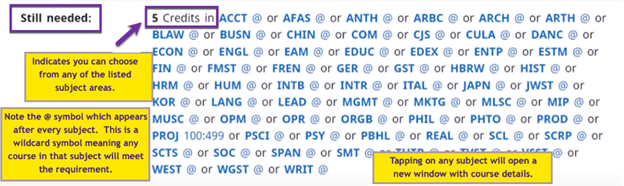
Fig 8: Example of Still Needed requirements showing a list of eligible subject areas.
Transfer Courses
Transfer courses are generally displayed on your audit with the original grade earned and a note with the name of that school.
Symbols and Formatting Notes
- The @ symbol is a wildcard meaning any course. For example, BIO @ means any course with a BIO subject code will meet this requirement.
- A course range (i.e., 100:499) means any course within that number range.

Fig 9
For additional assistance, submit a ticket for support.