
Holds: Add and Remove Student Holds
Last edit date: 2/5/2026
Audience: Staff
Purpose: This guide provides instructions for staff who manage student holds using the SOAHOLD
administrative page in RamPortal.
Important: Advisors do not manage holds using SOAHOLD. Please refer to Advising: Removing Advisor Holds for instructions on how to release Advisor Holds.
| Contents |
|---|
| Navigation |
| Add a Hold |
| Remove a Hold |
| Additional Notes |
Navigation
- If you are working off campus, connect the WCU VPN.
- Login to RamPortal using your WCU Single Sign On (SSO).
- Locate the Academic and Department Resources card on your home page.
- Click on View Student Holds (SOAHOLD).
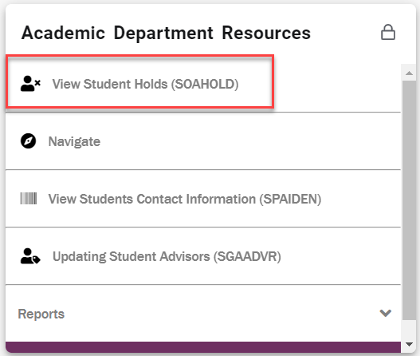
Fig. 1
Add a Hold
- Enter the student’s ID number and click Go.
- In the Hold Details section, update the blank row or click the + icon to insert a new row (Fig. 2).
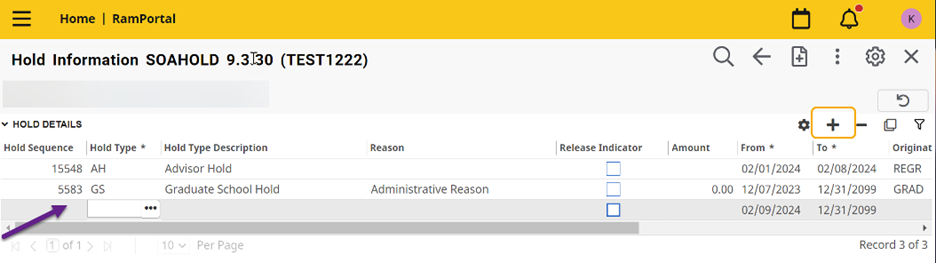
Fig. 2 - Enter the Hold Type code or select one using the three-dot menu.
- Enter the effective date of the hold in the From column. It defaults to the current date.
- Enter the end date of the hold in the To column. It will default to 12/31/2099.
- Confirm the Release Indicator checkbox is NOT selected.
- Click Save.
Remove a Hold
- Enter the student’s ID number and click Go.
- In the Hold Details section, locate the hold that needs to be removed.
- Click in the To date field and update the date to today’s date or the date the hold is no longer
effective (Fig. 3).
Important: Do not use the minus (-) icon to remove a hold. Using the minus icon deletes all record of the hold. Updating the To date releases the hold while retaining the historical record. - Click Save.
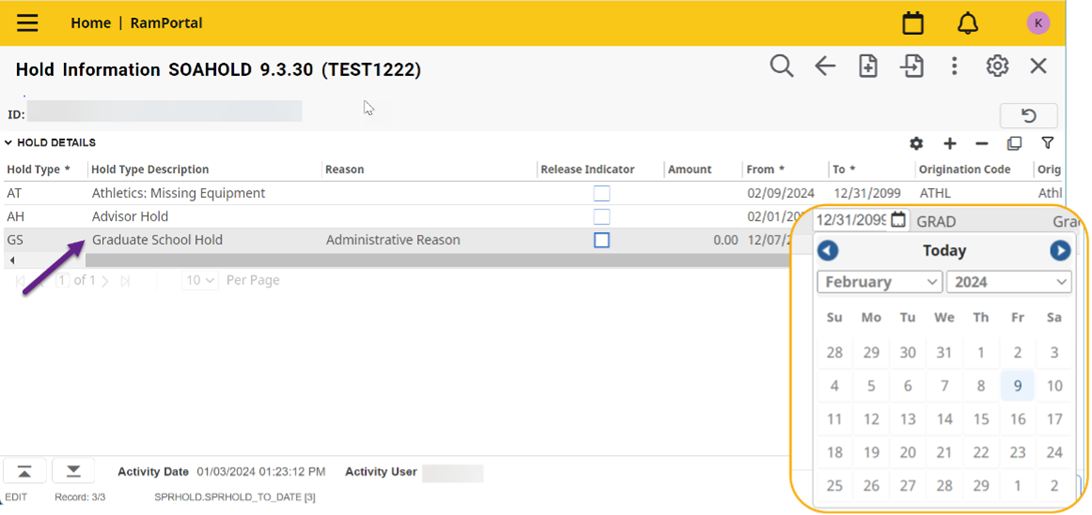
Fig. 3
Additional Notes
- Students are not notified when a hold is removed. It is recommended to send them an email to inform them the hold was released.
- Students should be able to register the same day the hold is released.
For additional assistance, submit a ticket for support.