
Advising: Removing Advisor Holds
Last edit date: 1/15/2026
Audience: Advisors
Purpose: This guide provides instructions for advisors on how to remove an Advisor Hold and view a list of advisees with an Advisor Hold in RamPortal.
| Contents |
|---|
| Navigation |
| Remove a Hold |
| View a List of Advisees with an Advisor Hold |
| About Other Holds |
Navigation
- Login to RamPortal using your WCU Single Sign On (SSO).
- Locate the Faculty Center card on your home page.
- Select My Advisee Information and then choose View Student Profiles and List of Advisees in the dropdown.
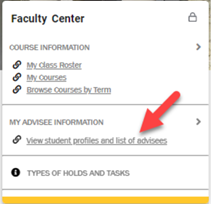
Fig 1
Remove a Hold
- Select a Term from the drop down.
- Search for advisee (see Fig 2).
- Enter the student ID, email, or name and click View Profile.
- You can also select the View My Advisee Listing link to view all advisees. Then select the advisee Name and ID to View Profile.
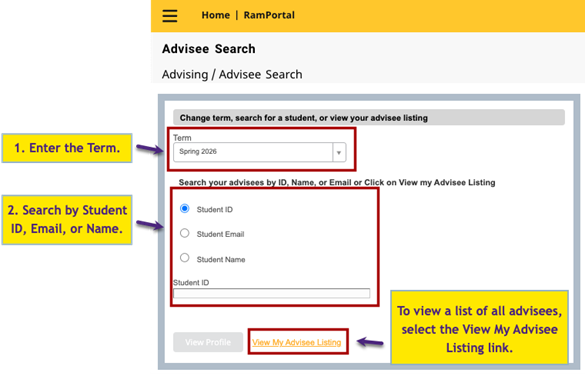
Fig 2
- Click on the Registration Notices and Holds button on the student profile (see Fig 3).
- Locate the Hold in the list.
- Click Release next to the item (see Fig 3).
- A confirmation message will appear in the top right corner once the Hold is released.
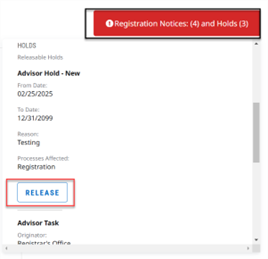
Fig 3
View a List of Advisees with an Advisor Hold
If you would like to see a full list of all your advisees who currently have an Advisor Hold:
- Locate the Faculty Center card on your home page.
- Click the View Student Profiles and List of Advisees button.
- Select a Term from the drop down.
- Click on the View My Advisee Listing link (see Fig 2).
- On the Advisee Listing page, locate the Advisor Holds column to identify students with an Advising Hold (see Fig 4).
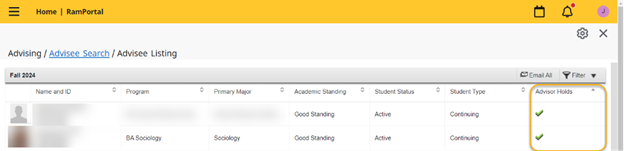
Fig 4
About Other Holds
This guide covers Advisor Holds only. For questions about other holds, please refer students to the office listed on the hold.
For additional assistance, submit a ticket for support.