
Class Search: Browse Courses by Term
Last edit date: 1/22/2026
Audience: Faculty and Staff
Purpose: Use this guide to understand how to search for classes in RamPortal using the Browse Courses by Term feature or by using the Class Search tool on the Registrar's website.
| Contents |
|---|
| Navigation |
| Search for Classes |
| View Course Details |
Navigation
Option 1: RamPortal
- Login to RamPortal using your WCU Single Sign On (SSO).
- Locate the Faculty Center card on your home page.
- Click the Course Information dropdown and choose Browse Courses by Term.
Option 2: Class Search on the Registrar Website
- Navigate to the Registrar’s homepage.
- Scroll to the Useful Links section and select Class Search.
Search for Classes
- Select a Term from the dropdown and tap Continue.
- On the Browse Classes page, enter one or more search criteria to narrow your search. Below are some common
search options.
- Subject: Enter three-letter course subject code (e.g., ECO, MAT, GEO) and choose from the dropdown list.
- Course Number: Optional but helps narrow results to a specific class.
- Campus: Allows to filter campus location or online.
- Attribute: Use to search for General Education classes that meet program requirements. For example, selecting Arts Distributive Requirement will display all the classes offered in the selected semester that will fulfill the Art General Education requirement.
- Advanced Search:
- Meeting Days and Time: Filter based on student availability.
- Instructor: Search for classes taught by a specific faculty member.
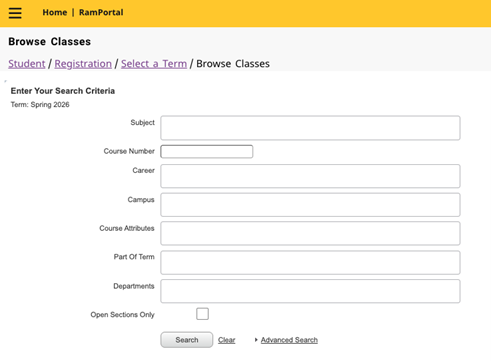
- Click Search to view results.
View Course Details
Once the search results load, scroll through to find the best fit.
- Review the Enrl Totals column for seat and waitlist availability.
- A red FULL icon indicates the class is closed. Some closed classes may have a waitlist students can join.
- Hover over icons for details, such as reserved seating and remaining waitlist spots.
- Click on the Class Title for additional details, such as:
- Course Description
- Prerequisites
- Corequisites
Select Search Again to return to the Browse Classes screen.
For additional assistance, submit a ticket for support.