
Unofficial Transcript: View Student Academic Records
Last edit date: 2/5/2026
Audience: Faculty and Staff
Purpose: This guide provides instructions for faculty and staff to view a student’s unofficial
transcript in RamPortal using the Student Profile.
Navigation
- Login to RamPortal using your WCU Single Sign On (SSO).
- Locate the Faculty Center card on your home page.
- Select My Advisee Information and then choose View Student Profiles and List of Advisees in the dropdown.
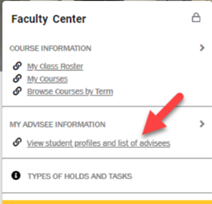
Fig. 1 - Select a Term from the dropdown.
- Search for the student using their ID, email, or name and click View Profile.
View the Unofficial Transcripts
- From the Student Profile page, select Unofficial Transcript from the left-hand menu.
- On the Academic Transcript page, choose the appropriate Transcript Level, Transcript Type, and click Submit.
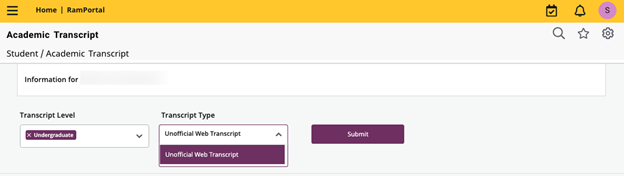
Fig. 2 - The unofficial transcript will load on the page. To print, choose the Print icon in the top-right corner of the page.
Important Information
- In-progress courses that have not yet been graded do not appear on the unofficial transcript.
- Some student holds may prevent access to transcripts. The Degree Audit is an alternate location to view student’s course history information.
For additional assistance, submit a ticket for support.