
Student Profile Overview
Last edit date: 1/27/2026
Audience: Faculty and Staff
Purpose: This guide explains how to access the Student Profile in RamPortal and provides an overview of the information available.
| Contents |
|---|
| Navigation |
| Search for a Student |
| Student Profile Overview |
| Related Guides |
Navigation
- Login to RamPortal using your WCU Single Sign On (SSO).
- Locate the Faculty Center card on your home page.
- Open the My Advisee Information dropdown and select View Student Profiles and List of Advisees.
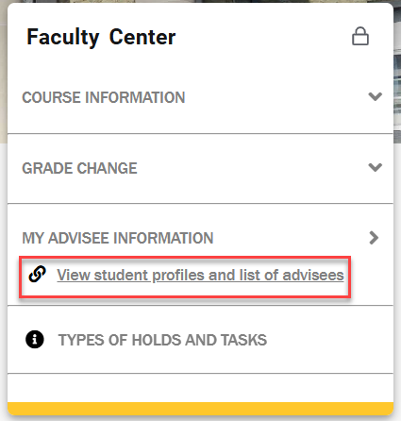
Fig. 1
Search for a Student
- Select a Term from the dropdown menu.
- Search for a student by entering the student ID, email, or name and click View Profile.
Student Profile Overview
The Student Profile provides a centralized view of a student’s academic and registration information (see Fig.2).
- Overview Information
This section contains academic standing, credit hours, GPA, biographical details, general student information, along with advisors. - Registration Notices and Holds
This is displayed at the top right and summarizes the student’s registration eligibility, active holds, and time tickets (registration window) for the selected term. - Expandable Details Sections
A panel on the right provide access to curriculum details, registered courses, prior education, and testing information. - Left Navigation Menu
Provides quick access to additional tools such as the Degree Audit, unofficial transcript, class schedule, Navigate, and Holds/Task Info.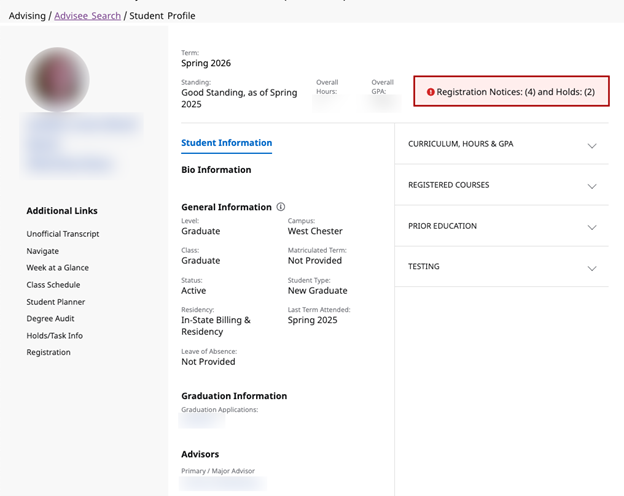
Fig. 2
For additional assistance, submit a ticket for support.