
Advising: My Advisee Information
Purpose: Use RamPortal to view your advisees, check registration information (time tickets), and manage advisor holds. Choose the option that best fits your needs: a detailed student view (Faculty Center), an at-a-glance list (Advising Listing Card), or a comprehensive report (Advisee Listing Report).
| Contents |
|---|
| Access Your Advisees (Faculty Center Card) |
| View Advisees at a Glance (Advising Listing Card) |
| Advisee Listing Report (Argos) |
Access Your Advisees (Faculty Center Card)
You can view your list of advisees within the Faculty Center Card. Students with an advisor hold are identified in the list view using the Advisor Hold column. Additional registration details, including time tickets and hold information, are available within each student’s profile.
- Login to RamPortal using your WCU Single Sign On (SSO).
- Locate the Faculty Center card on your home page.
- Select My Advisee Information and then choose View Student Profiles and List of Advisees in the dropdown. (See Fig 1)
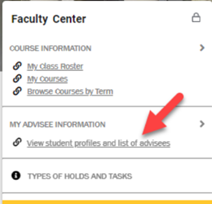
Fig 1 - Select a Term from the drop down.
- Search for advisee (see Fig 2).
- Enter the student ID, email, or name and click View Profile, OR
- Select the View My Advisee Listing link to view all advisees. Then select the advisee Name and ID to View Profile.
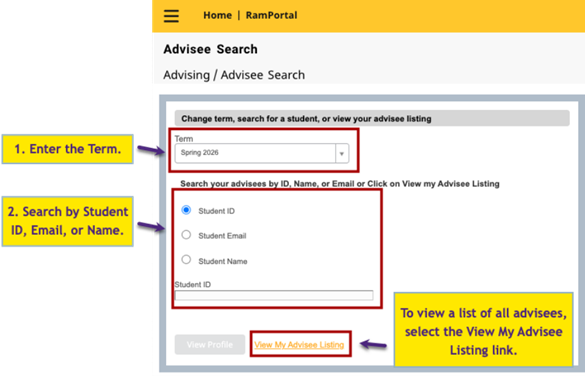
Fig 2 - Select the Registration Notices and Holds notification in the top right of the page (see Fig 3). Within this section you can:
- View registration time tickets
- Check registration notices
- View and release advisor holds
- View testing information
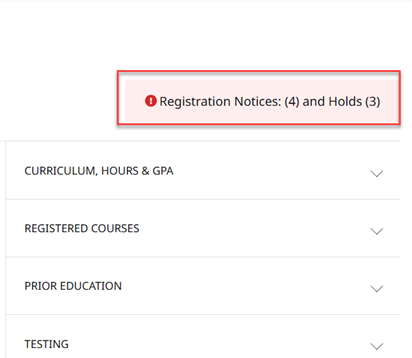
Fig 3
View Advisees at a Glance (Advising Listing Card)
Use the Advising Listing card to quickly scan your advisees and their registration information in one view. You can see registration time tickets and advisor hold status for all students at a glance in a single list. This option is view only and does not allow you to take any action on the student profile.
- Login to RamPortal using your WCU Single Sign On (SSO).
- Locate the Advising Listing card on your home page.
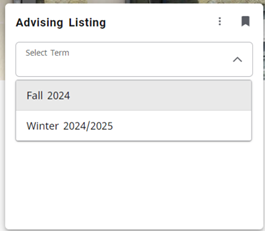
Fig 4 - Select the Term.
- Click View Details.
- Your Advisees for the Selected Term will display. See Fig 5.
- To sort by last name, select the arrow in the column header.
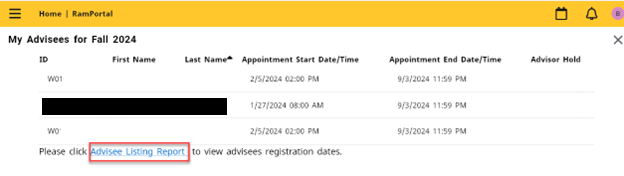
Fig 5
Advisee Listing Report (Argos)
An additional report is available for advisors who need a more detailed view of their advisees. Use this report if you need enrolled credit hours, waitlist credit hours, or a more comprehensive, exportable list of advisees.
- Follow steps 1-4 in View Advisees at a Glance (Advising Listing Card)
- Click the Advisee Listing Report link at the bottom of the page. See Fig 5.
- The report will open in Argos, the University’s reporting system.
- If prompted to log in, select Single Sign-On (SSO) and login with your WCU credentials.
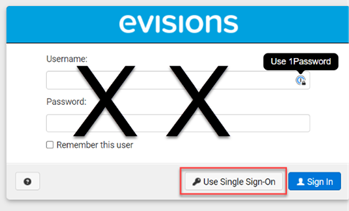
Fig 6 - To run the report: select the Term and click Run. See Fig 7.
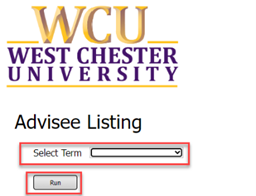
Fig 7 - Your Advisee Listing Report will load with the following information: Student ID, First and Last name, Registration date and time, Advisor hold status, Enrolled Credits, and Waitlist credits.
- Use the gear icon at the bottom right to either Filter, Order Columns, or Export to CSV (Excel) file.
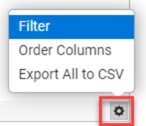
Fig 8
For support, please submit a ticket.