
Advising: Viewing and Adding Advising Notes
Last edit date: 2/2/2026
Audience: Advisors
Purpose: This guide provides instructions for viewing, adding, and editing current advising notes via the student’s Degree Audit, and for accessing historical advising notes (created prior to August 2, 2024).
Access to view, add, and edit notes is based on your Degree Audit role and the permissions assigned to that role. All users can view notes; not all users have permission to add or modify notes.
| Contents |
|---|
| Access Current Advising Notes |
| Navigation Option 1: Degree Audit Card |
| Navigation Option 2: Student Profile |
| View Advising Notes |
| Add a New Advising Note |
| Access Historical Advising Notes |
Access Current Advising Notes
(Effective August 2, 2024)
Current advising notes are accessed through the student’s Degree Audit. Use one of the navigation options below to open the Degree Audit.
Navigation Option 1: Degree Audit Card
- Login to RamPortal using your WCU Single Sign On (SSO).
- Locate the Degree Audit card on your home page (see Fig 1).
- Click the Degree Audit button.
- Enter the student’s ID in the Student ID field.
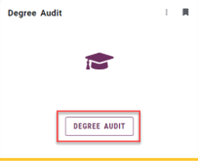
Fig 1
Navigation Option 2: Student Profile
- Locate the Faculty Center card on your home page.
- Select My Advisee Information and choose View Student Profiles and List of Advisees in the dropdown.
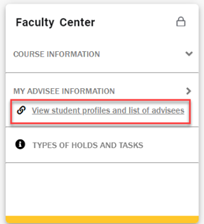
Fig 2 - Select a Term from the dropdown.
- Search for the advisee using their ID, email, or name and click View Profile.
- From the Student Profile page, select Degree Audit from the left-hand menu.
View Advising Notes
Advising Notes created after August 2, 2024, can be accessed in two places within the Degree Audit:
- The Notes section at the bottom of the Degree Audit worksheet.
- The Three Dot menu (⋮) in the upper right corner of the Degree Audit and select Notes from the dropdown menu (see Fig 4).
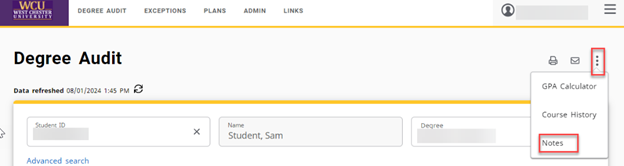
Fig 4
Add a New Advising Note
- From the Degree Audit, click the three dot menu (⋮) and select Notes (see Fig 4).
- Click Add a New Note.
- Select a note from the Predefined notes dropdown or enter your own note in the Add Description field.
If you select a Predefined note, it will populate in the description box and can be edited as needed. - Click Save Note.
- A confirmation message will display indicating the note was successfully added to the audit.
Access Historical Advising Notes
Use these steps to access advising notes from prior to August 2, 2024.
- Locate the Advising Notes card on your RamPortal homepage.
- Click on the Start button.
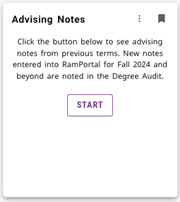
Fig 5 - Enter the student’s ID in the Enter BannerId field and click Search. This will open the student’s historical advising notes page.
For additional assistance, submit a ticket for support.