

Start of Term Tasks
Last edit date: 08/19/2026
Purpose: This document provides instructions for students to complete their Start of Term Tasks in RamPortal which include reviewing personal information and financial aid awards, completing the Student Code of Conduct agreement, FERPA notice and Start of Term agreement. Your Start of Term agreement and completion of the Start of Term Tasks is critical to preventing the cancellation of your class schedule.
| Contents |
|---|
| Navigation |
| Complete The Introduction Page |
| Review And Update Personal Information |
| Review Financial Aid Award Information |
| Complete The Remaining Tasks |
NAVIGATION
- Login to RamPortal using your WCU Single Sign On (SSO).
- Locate the Start of Term Tasks card on your home page.
- Click on Complete My Start of Term Tasks.
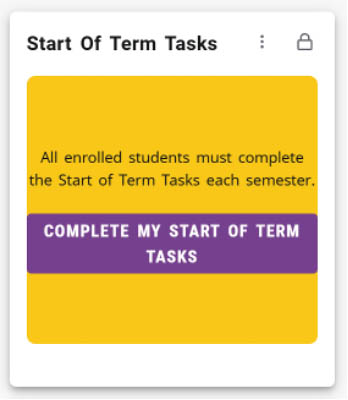
Fig. 1
COMPLETE THE INTRODUCTION PAGE
- Review and Update Personal Information: Click the link (see Fig. 1, #1) and follow the steps in the Review and Update Personal Information section below.
- Review Financial Aid Award Information: Click the link (see Fig. 1, #2) and follow the steps in the Review Financial Aid Award Information section below.
- Review the Student Financials (Bursar) card on your RamPortal home page (see Fig. 1, #3)
- Once both reviews are complete, click the I have reviewed and completed the items above box at the bottom of the page.
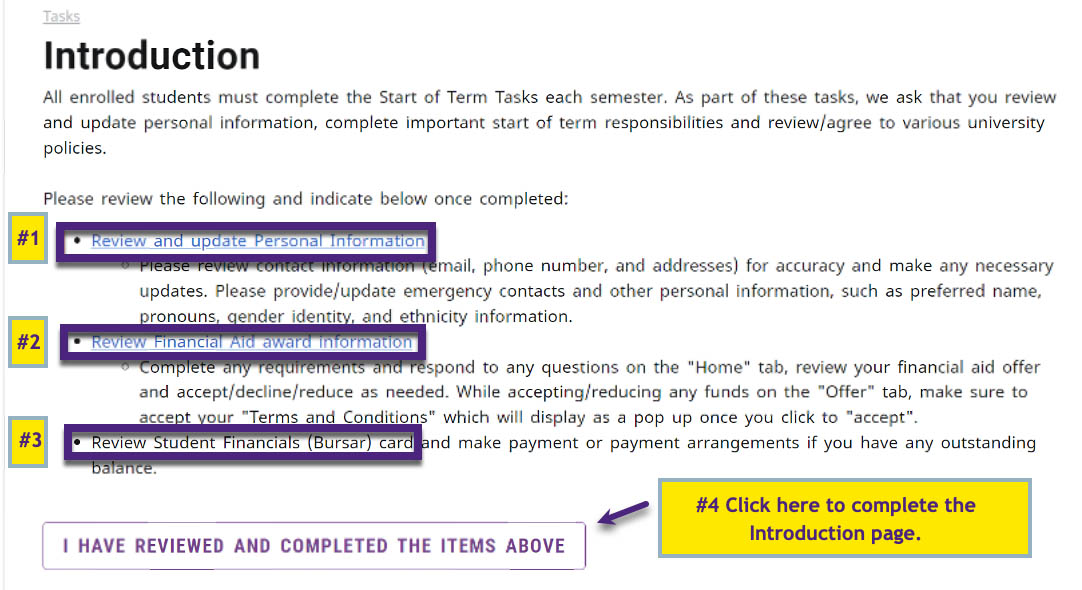
Fig. 2: Introduction page in the Start of Tern Tasks
REVIEW AND UPDATE PERSONAL INFORMATION
On the Personal Information Page, review each block for accuracy. The left box displays your profile picture, name, ID number, WCU email address, local address and phone number. This is view only. To make edits use the boxes to the right.
Editing Steps
- Click the Pencil icon to make changes to existing information.
- Click Add New to add information.
- Update fields and tap Update to save.
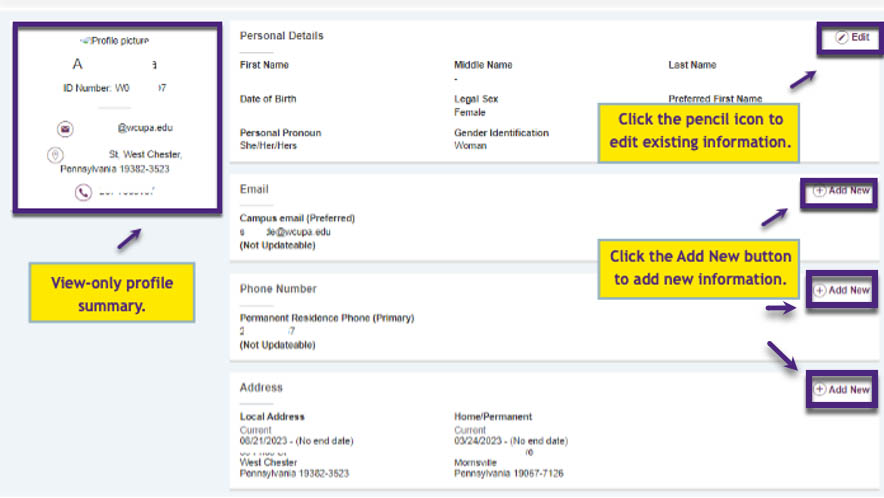
Fig. 3 Personal Information Page
Additional Notes:
- Personal Details: You can update Preferred first name, personal pronouns and gender identification.
First, Middle, Last Name, Date of Birth and Legal Sex cannot
be modified in this section. - Address: For temporary housing, include a Valid From and Valid Until dates.
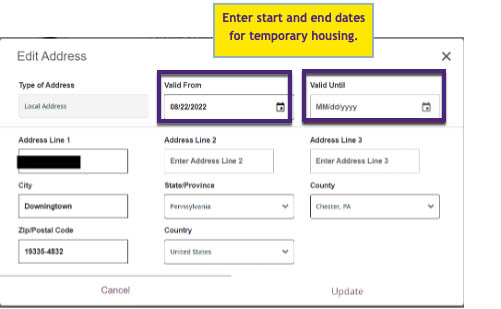
Fig. 4
REVIEW FINANCIAL AID AWARD INFORMATION
- If you have financial aid, click the link on the Introduction page (see Fig. 1 #2) and follow the instructions on screen to review your awards. For detailed instructions refer to the Financial Aid: How to View and Understand Your Financial Aid Award on the RamPortal Training Website.
- If you do not have any aid to review, skip this step and click the I have reviewed and complete the items above box to complete.
COMPLETE THE REMAINING TASKS
The Task Menu on the left lists the remaining items you need to complete after the Introduction.
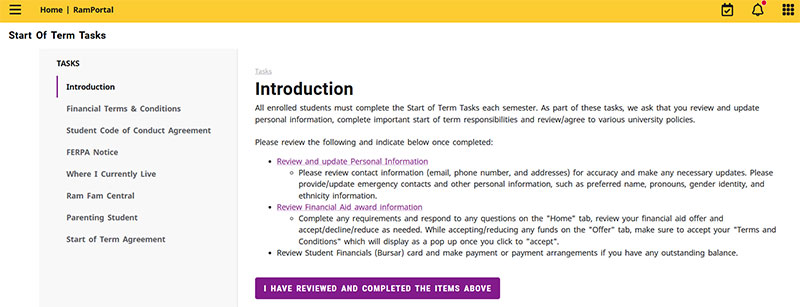
Fig. 5: Task Menu showing remaining items to complete
- Financial Terms & Conditions: Students who have not already completed their Financial Terms & Conditions agreement will be prompted to click a link to review and complete that agreement.
- Student Code of Conduct Agreement: Read through and click Accept.
- FERPA Notice: Read through and click Accept.
- Where I Currently Live
- Confirm the local address that is displayed.
- If you updated your address earlier in the Introduction section, refresh your browser to see the changes before confirming.
- To edit, type the correct address and click Save (see fig. 7 below).
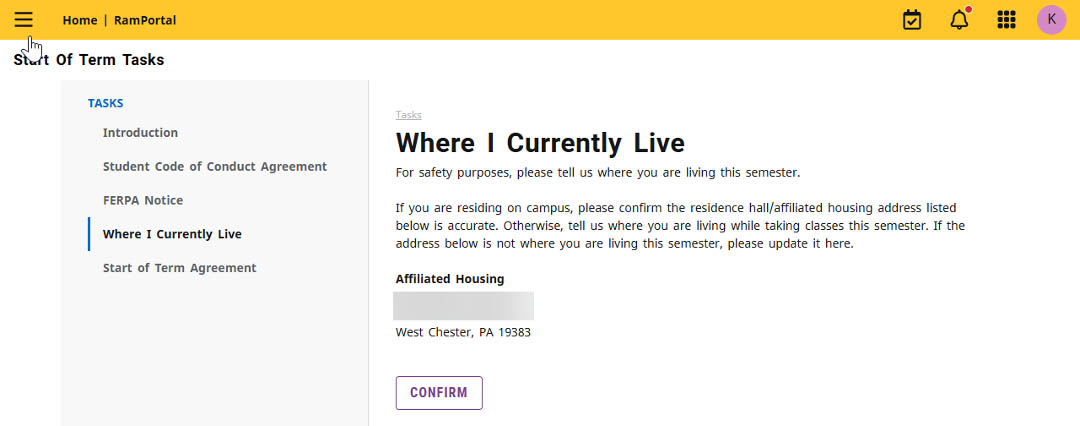
Fig. 6 Where I Currently Live Page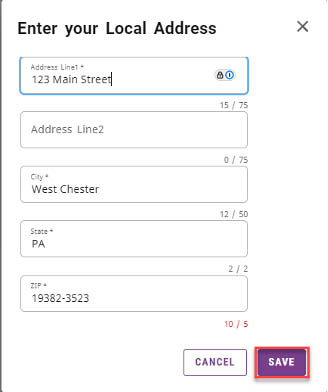
Fig. 7: How to edit your local Address
- Ram Fam Central: Read through and follow the links if you’d like to grant family access to pieces of your student record.
- Parenting Student: Answer the questions and click Save.
- Start of Term Agreement: Read through and click Accept.
For support, please submit an AES Support Portal ticket.