

Registrar Student Schedule Website
Audience: Staff and Faculty
Purpose: This tool is only available in the event that both RamPortal and Navigate are unavailable for viewing student class schedules. This functionality is maintained through the WCU website and will serve as a contingency to our other systems.
| Contents |
|---|
| Navigation |
| List View |
| Menu View |
NAVIGATION
- Students will navigate to the Registrar Student Schedule Login.
- Students will login with their WCU credentials as though logging into RamPortal. See
Fig 1.
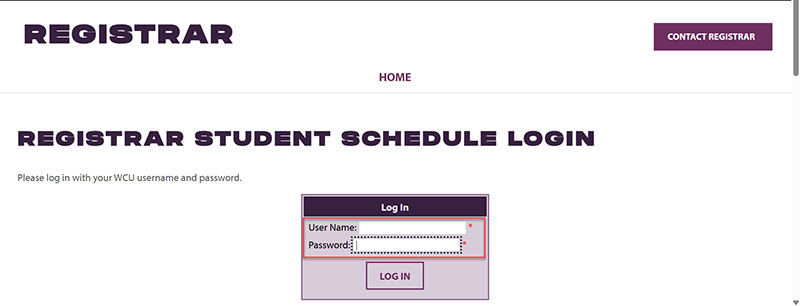
Fig. 1 - Select the term that you would like to view. Please note that you will only be able
to view the current term or any future term you are enrolled in. See Fig 2.
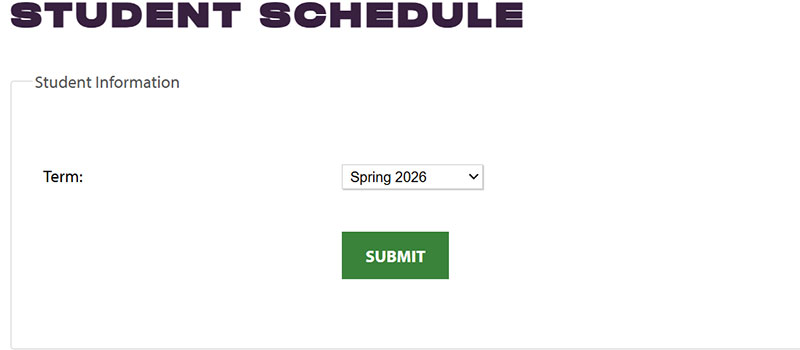
Fig. 2 - Your schedule will be displayed in List View.
LIST VIEW
- Your schedule will initially show in List View. This will give you a chronological order of your classes for today’s date. See Fig 3.
- You will see the following information for your course in the list view:
- Title of Course
- Course Number and Section
- Start and End Time of Course
- Location of Course (if not fully online)
- Instructor
- Instructional Method
- Current Status in Course
- Scroll down in the list view for all scheduled days in the current month.
- Use the arrows in the upper right-hand corner to change between months.
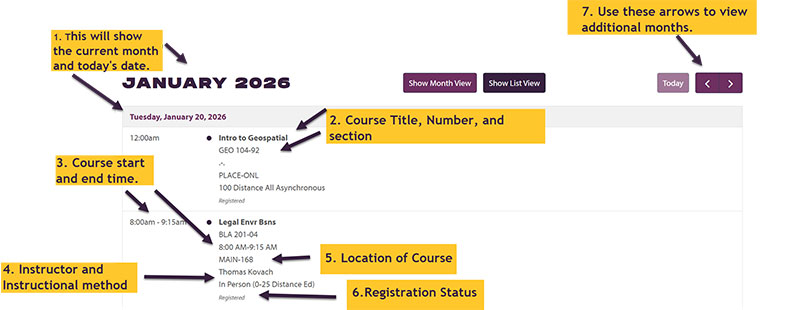
Fig. 3
MENU VIEW
- To view the current month in a calendar format, select Show Month View as shown in Fig 4.
- You will see the full month, and classes scheduled for each day with the following
information:
- Title of Course
- Course Number and Section
- Start and End Time of Course
- Location of Course (if not fully online)
- Instructor
- Instructional Method
- Current Status in Course
- Use the arrows in the upper right-hand corner to change between months.
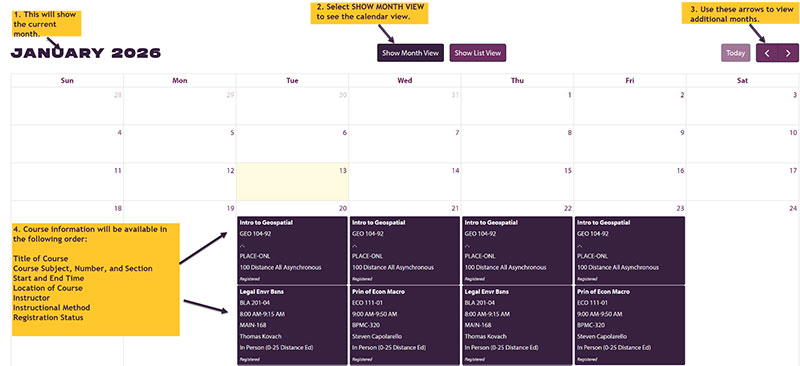
Fig. 4