

Financial Terms and Conditions: View and Accept
Audience: Students
Purpose: This guide explains how to review and accept the Financial Terms and Conditions agreement in RamPortal. The Register for Classes card will display the Financial Terms and Conditions button until you accept the agreement. After accepting the agreement, the card will display your registration date and time, and you can start preparing for registration. Students must accept this agreement before they can register for classes.
| Contents |
|---|
| Navigation |
| Financial Terms and Conditions |
| Review and Submit |
| After You Accept the Agreement |
Navigation
- Log in to RamPortal using your WCU Single Sign On (SSO).
- Locate the Register for Classes card on your home page (Fig. 1).
- Select the Financial Terms and Conditions button to open the card.
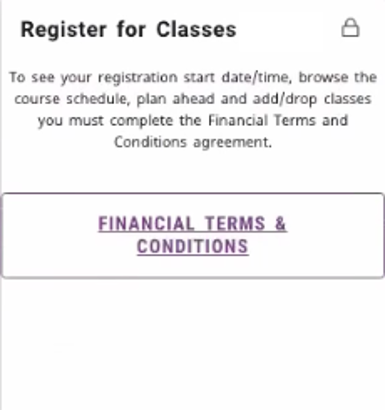
Fig. 1
Financial Terms and Conditions
The Financial Terms and Conditions agreement is displayed.
- Read the agreement carefully (Fig. 2).
- Scroll to the bottom of the page.
- Select I Agree.
- Select Next.
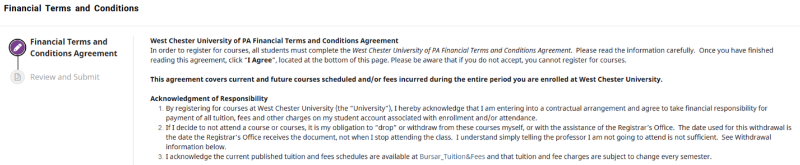
Fig. 2
Review and Submit
After selecting Next, the Review and Submit page is displayed.
- Review the agreement information.
- Select Submit to complete the agreement.
After You Accept the Agreement
After you accept the agreement, the card will update to display the Register button and your Registration Date/Time (Fig. 3). If the card does not update after a few moments, refresh your browser by clicking on your browser’s refresh button.
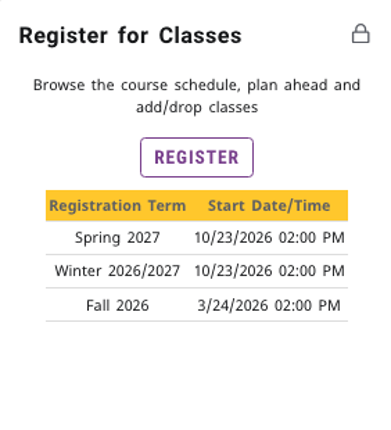
Fig 3
Visit Class Registration: Register for Classes for additional instructions on how to register for classes.
For support, please submit an AES Support Portal ticket.