
Tenure and Promotion: Supervior Review User Guide
Purpose: West Chester University’s Tenure and Promotion Application Superior Review Procedure.
Before continuing, please note the following:
The OnBase Web Client is supported on the following browsers:
- Google Chrome 129 or later
- Microsoft Edge on Chromium 129 or later
- Mozilla Firefox 131 or later
- Mozilla Firefox Extended Support Release (ESR) 128 or later
- Safari 17 or later, with the exceptions of full screen mode and Safari Reader
Please disallow popup blockers on your computer when using the OnBase system for this process. If you do not know how to disable popup blockers on your browser, please submit a ticket for support. You must have your employee ID and your WCU username/password to proceed.
NOTE: If this is your first time working as a reviewer for the Tenure and Promotion process, submit a ticket for support as soon as possible to ensure no delays in processing.
NOTE: You only have until your access end date to make your recommendation. Once the deadline has passed, you must contact the TeP Committee Chair to record your recommendation.
| Contents |
|---|
| Access TeP Superior Reviews View |
| TeP Superior Review Process |
| TeP Superior Recommendation Process |
| Deans Only Tenure Review Letters |
Access TeP Superior Reviews View
- Browse to onbase.wcupa.edu using an approved browser from the list above.
- Select Login. Use your WCU Credentials. Fig 1.
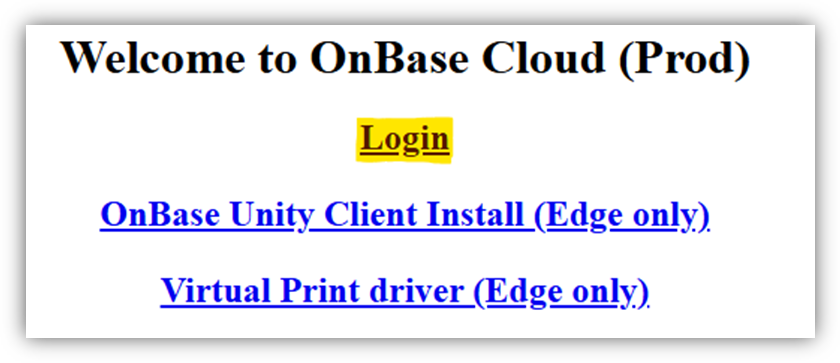
Fig 1 - Click on the menu icon on the top left of the screen. It may read Document Retrieval
or Status View. Fig 2.
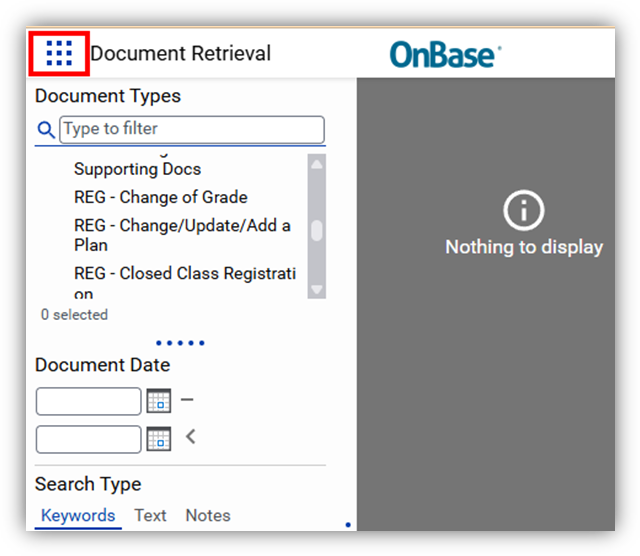
Fig 2 - Select “Open Workflow from the options. A new Workflow interface window will open.
Fig 3.
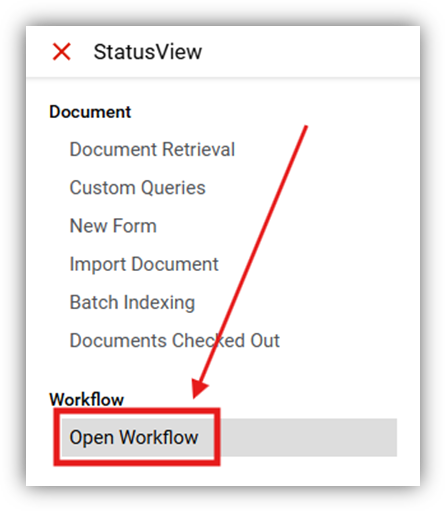
Fig 3
TeP Superior Review Process
- Click on the arrow to the left of TeP2 Superior Reviews to expand the queue options.
Click on the TeP2 Dean, Dept Chair Dept Commit Chair Review queue to see your assigned
documents. Fig 4.
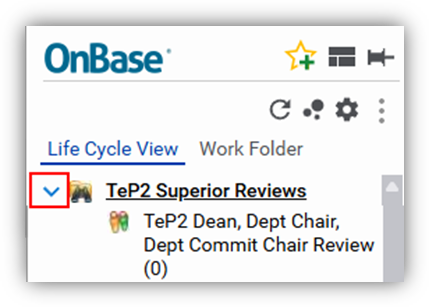
Fig 4 - Double click on one of the candidates from your inbox. Fig 5.
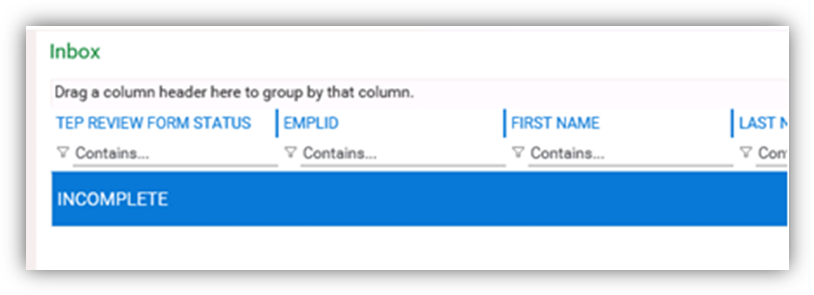
Fig 5 - The Review form is displayed on the viewer on the bottom of the screen, the associated
documents are available via the work folder on the top left, next to Life Cycle View.
Fig 6.
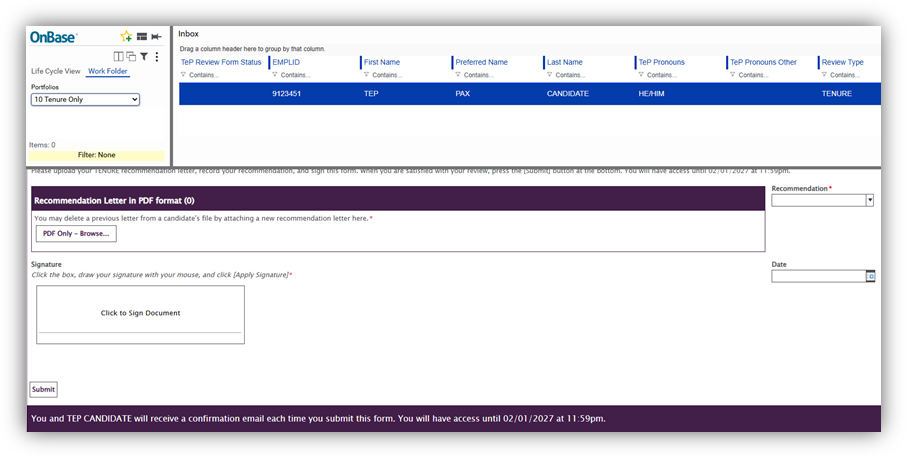
Fig 6 - Double click on the work folder documents to display them in another window for review,
or select your desired document view from the menu in Fig 7.
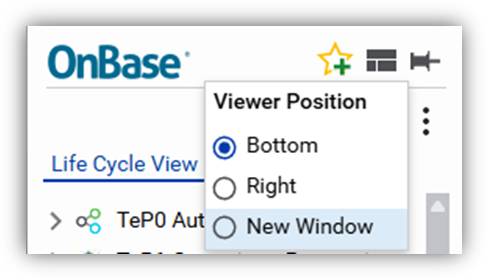
Fig 7 - The work folder offers a dropdown to display the documents you wish to view. Fig 8.
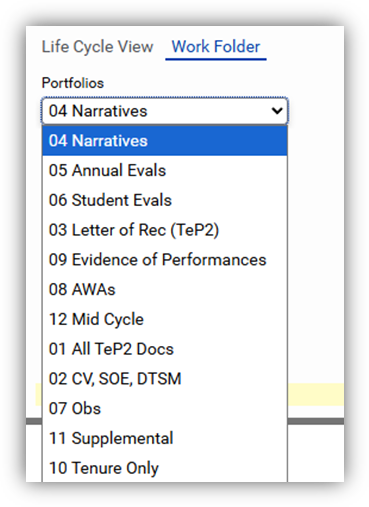
Fig 8
TeP Superior Recommendation Process
- When you are ready to complete the recommendation, select the candidate whose TeP
Review Form Status = INCOMPLETE. On the form, use the dropdown to indicate your recommendation.
Fig 9.
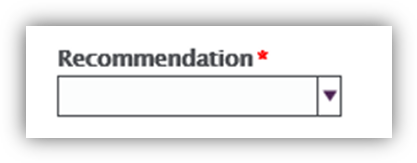
Fig 9 - If applicable, attach your recommendation letter using the attach button on the form.
Fig 10.
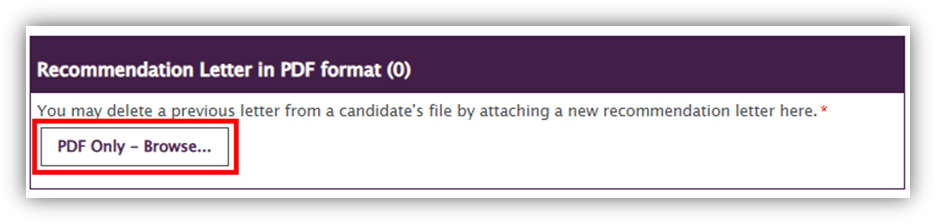
Fig 10 - Sign the document on the signature field using your mouse or your finger if you have
a touchscreen monitor. Be sure to add the current date to the date field. Fig 11.
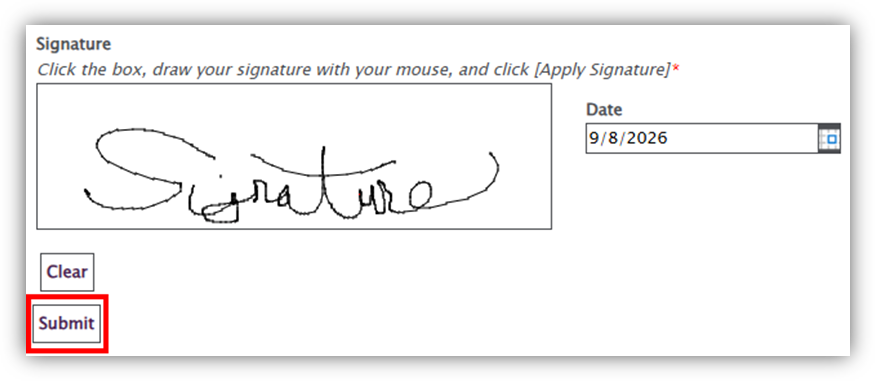
Fig 11 - Once you have filled out and saved the Review Form, you must indicate that it is complete
by clicking on the SUBMIT button. Fig 11.
NOTE: This will email a copy of the recommendation letter to the Candidate.
Deans Only Tenure Review Letters
Deans now have access to review letters for Tenure Candidates only.
- To access the Tenure review letters, click on the pulldown menu on the top left of
the screen. Fig 12.

Fig 12 - Select Open StatusView from the options. Fig 13.
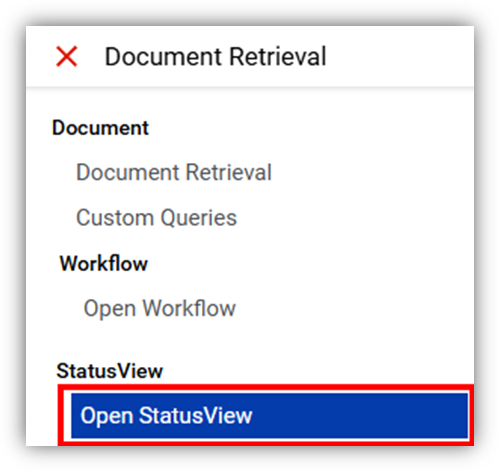
Fig 13 - Select the TeP Tenure Review Letters. Fig 14.
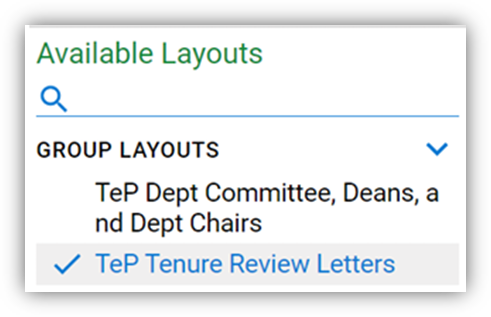
Fig 14 - Letters for your review will populate in the right-hand panel. Fig 15.

Fig 15 - Click on the candidate’s letter to review. Fig 16.
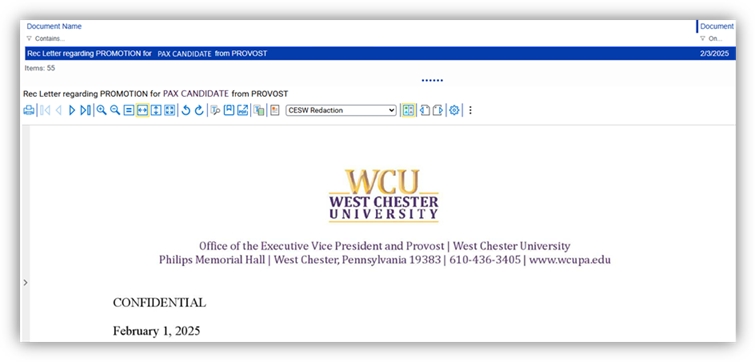
Fig 16
For additional assistance, submit a ticket for support.