Anthology Instructions: MEd Literacy Portfolio
Logging into the System
You can log into the system directly via this link: https://wcupa.chalkandwire.com/Login.aspx
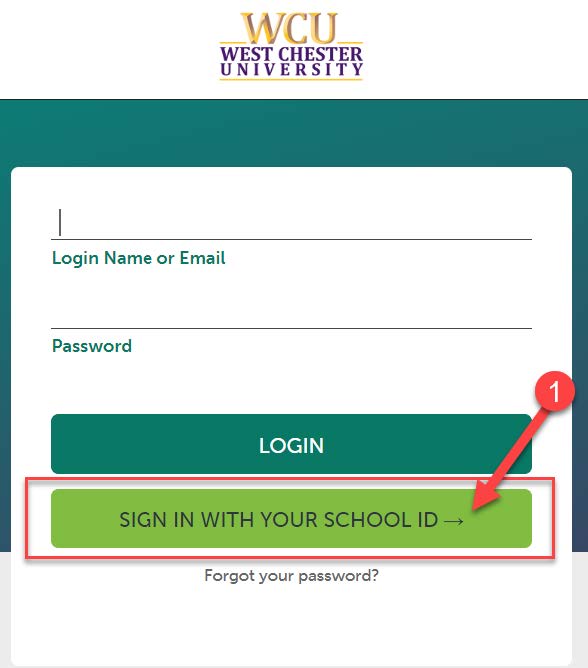
- Click on “Sign in with your school ID”.
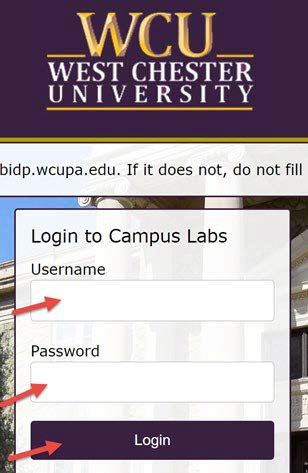
- Then you will be prompted to log in with your WCU log in credentials (the same username
and password that you use for D2L, email, RamPortal, etc.)
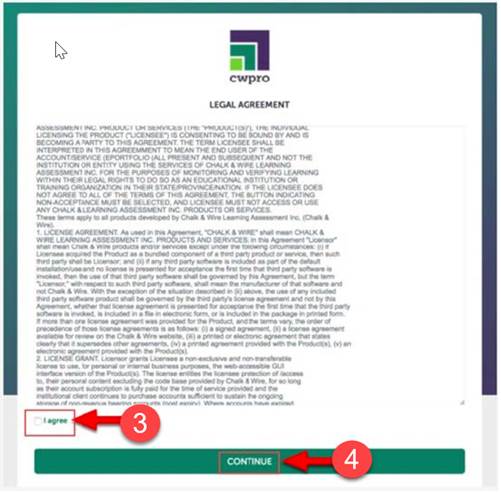
- Your first time logging in to the system, you will need to read and accept the legal agreement for using Anthology Portfolio. Once you have read the agreement, select “I agree.”
- Then, click “Continue.” You will only have to do this once on your first-time logging
into the system.
Access Course Assignments
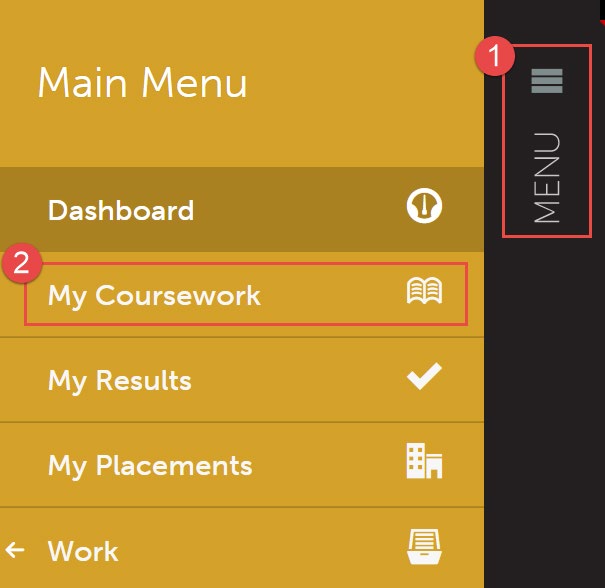
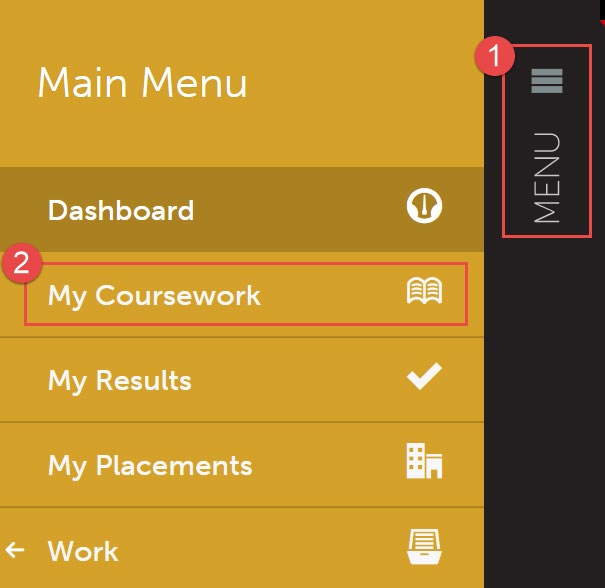
- Click on the “Menu” tab on the left side.
- Click on “My Coursework.”
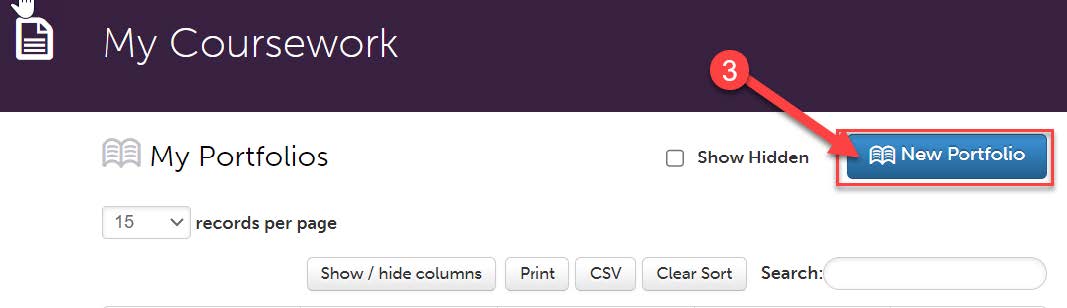
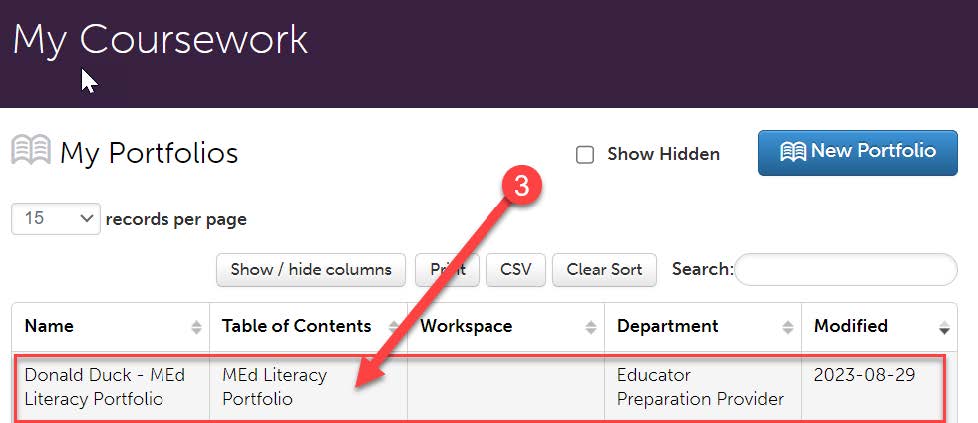
- The first time you access your assignments, you will need to create a new portfolio.
To do so, click on the “New Portfolio” button.
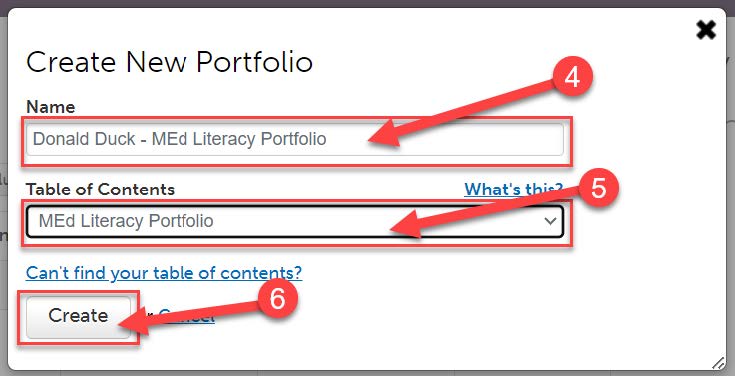
- You will need to name your portfolio. You should name your portfolio “FirstName LastName – MEd Literacy Portfolio”. (Example: In the screen shot below, the student’s name is Donald Duck, so the student named their portfolio “Donald Duck – MEd Literacy Portfolio”).
- Next, you will select the “Table of Contents”. The “Table of Contents” you should select is “MEd Literacy Portfolio”.
- Click “Create”.
MEd Literacy Portfolio Requirements
Reflection 1, Reflection 2, Vision Statement
Once you create your portfolio, you will see all of the assignments that you are required
to submit in Anthology for that course. For Reflection 1, Reflection 2, and Vision
Statement, you will have to upload a file. Follow the instructions in this section
for each of these submissions.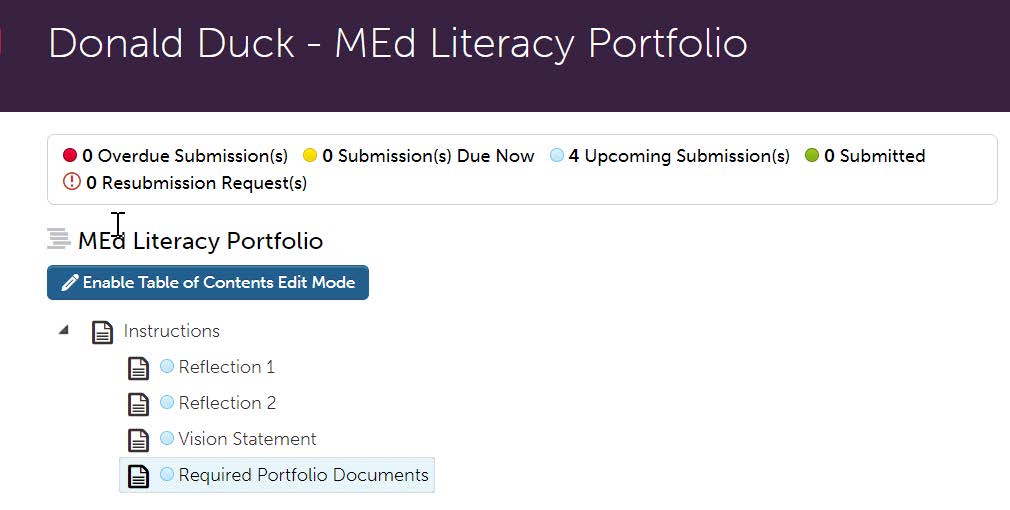
- Click on the name of the assignment you wish to complete.
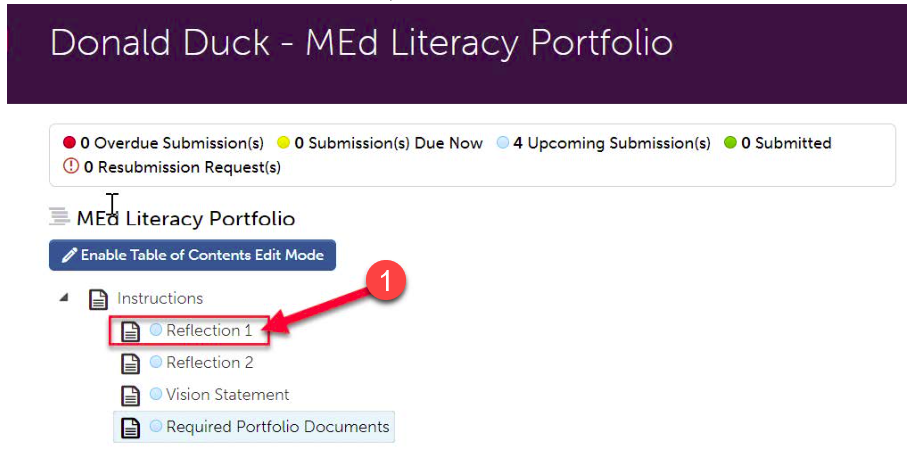
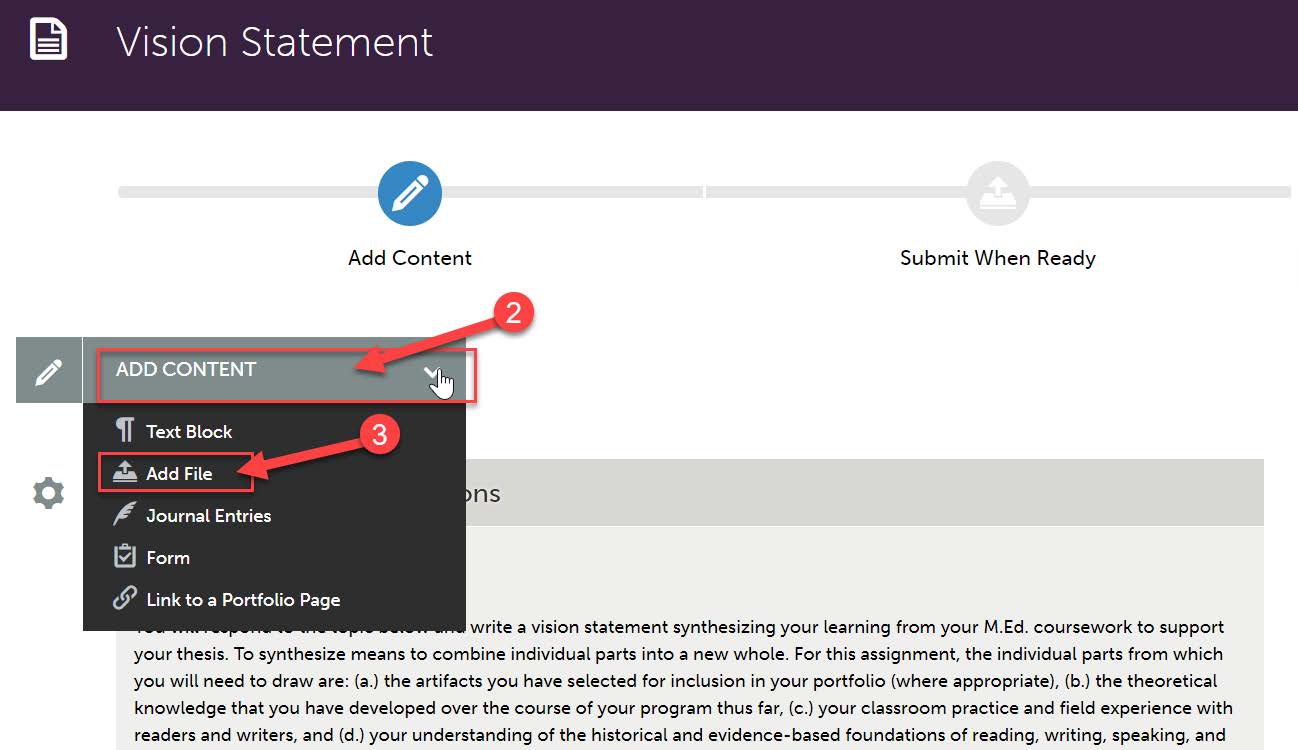
- Read the instructions carefully. For these assignments, you are required to upload a file. Click on “Add Content”.
- Then, click “Add File”.
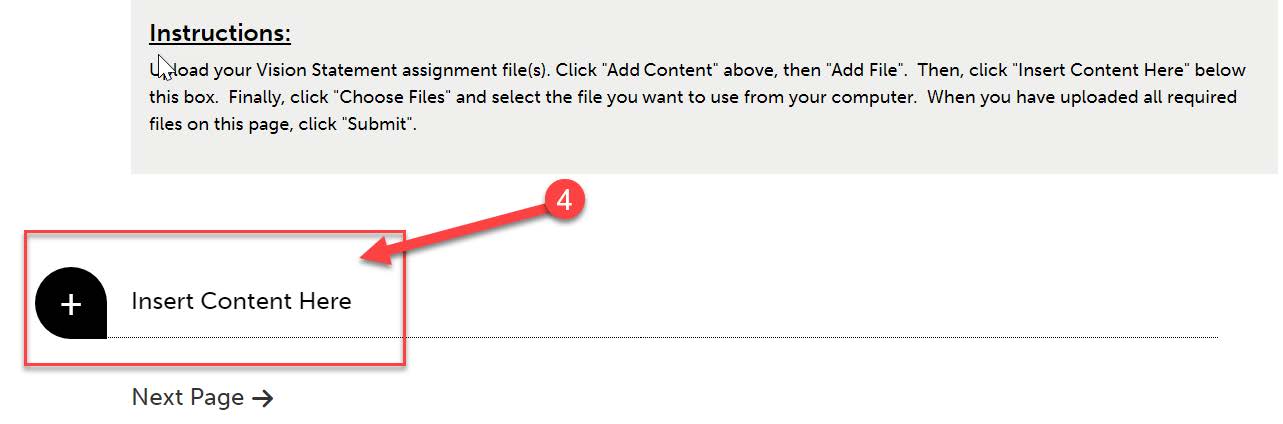
- Then, click “Insert Content Here” below the instructions.
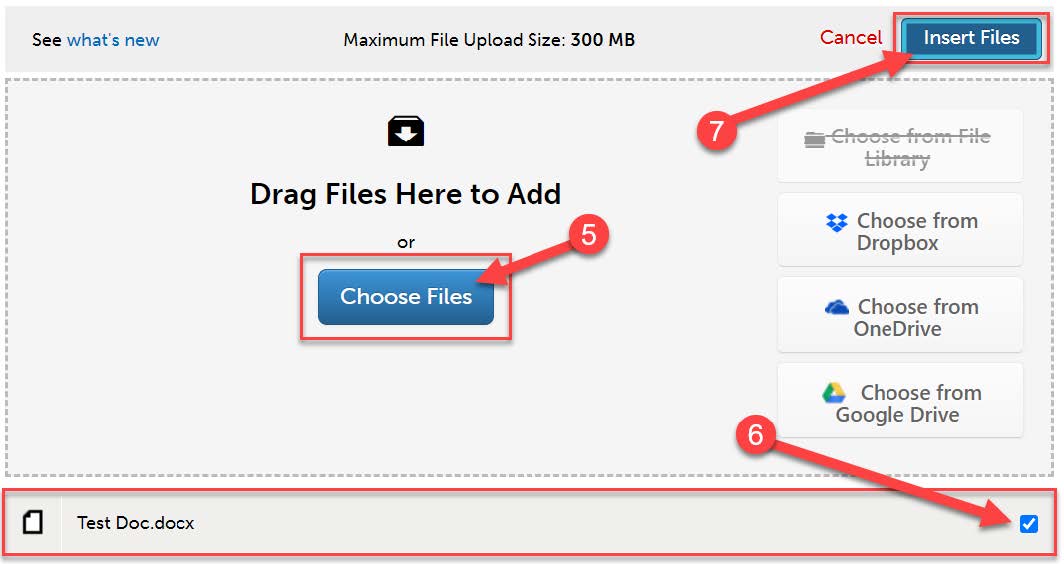
- Click “Choose Files.” Then, select the file(s) from your computer. You can upload multiple files if necessary.
- When the file is uploaded, it will appear below with a blue check mark next to it.
- Then, click “Insert Files”
- Once you have uploaded required files to your assignment, you are ready to submit
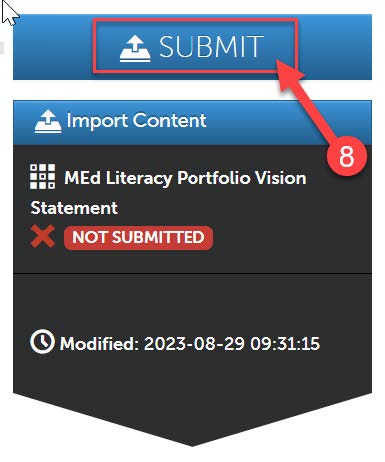
it. Scroll all the way back up to the top of the assignment screen. Click “Submit”.
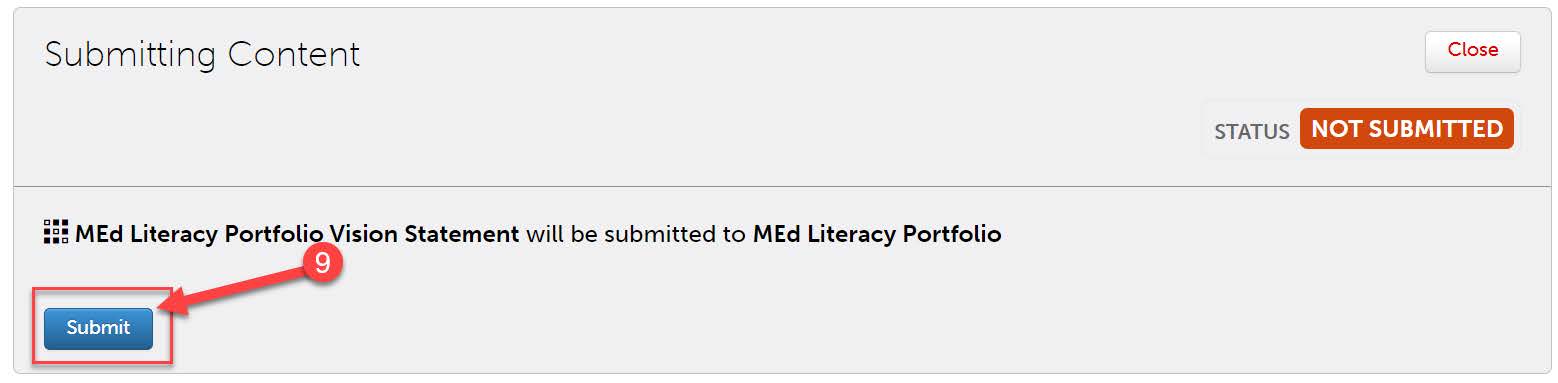
- Then, click “Submit” again.
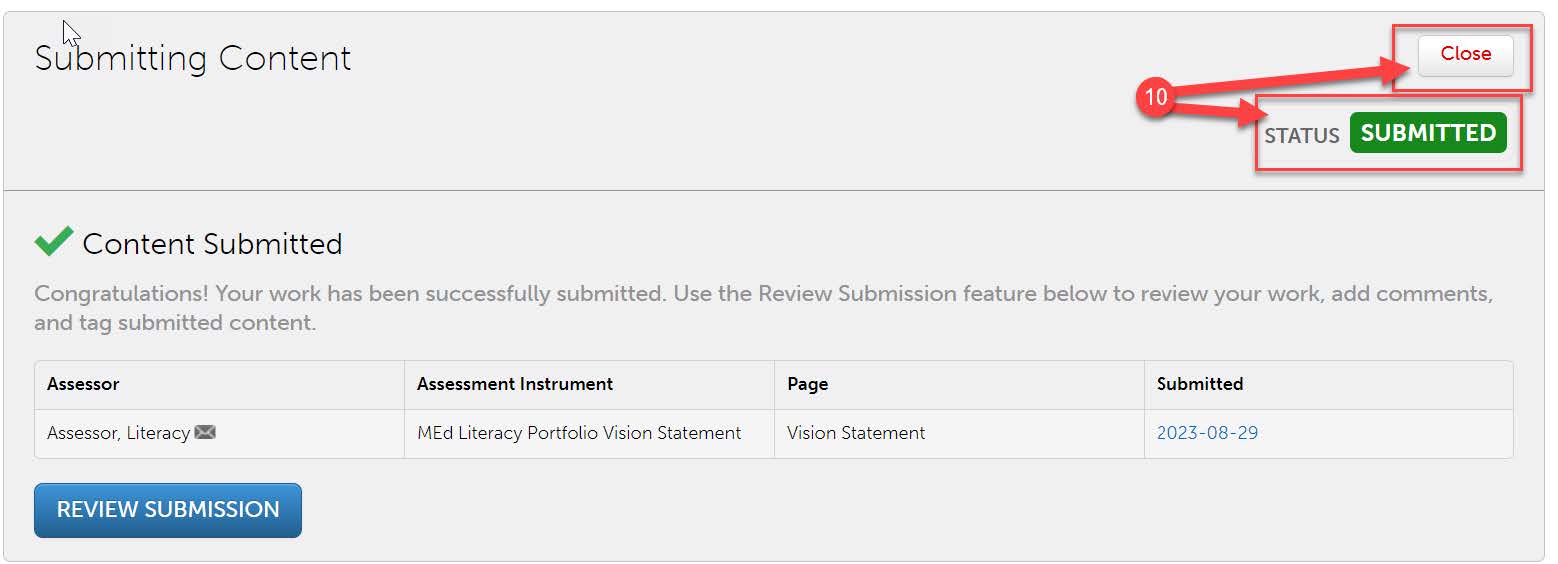
- You should see “Status: Submitted.” Then click “Close”.
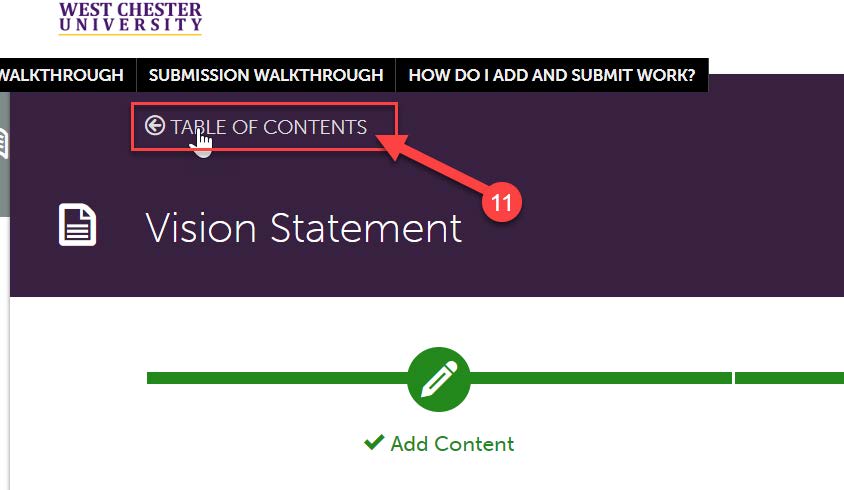
- Click “Table of Contents” to return back to your other assignments.
- Repeat steps 1-11 for your other assignments (Reflection 1, Reflection 2, and Vision Statement).
Required Portfolio Documents
Click on “Required Portfolio Documents” to complete the remainder of your MEd Literacy
Portfolio requirements.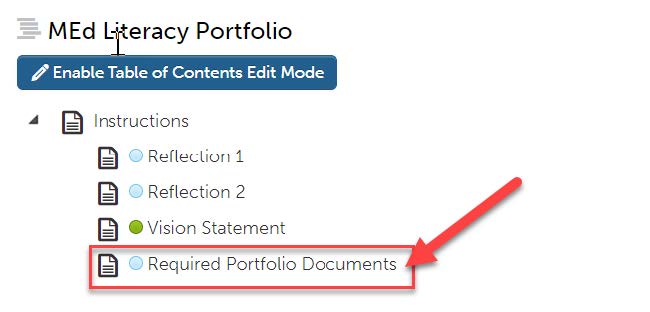
Portfolio Link
- The first requirement is the “Portfolio Link.”
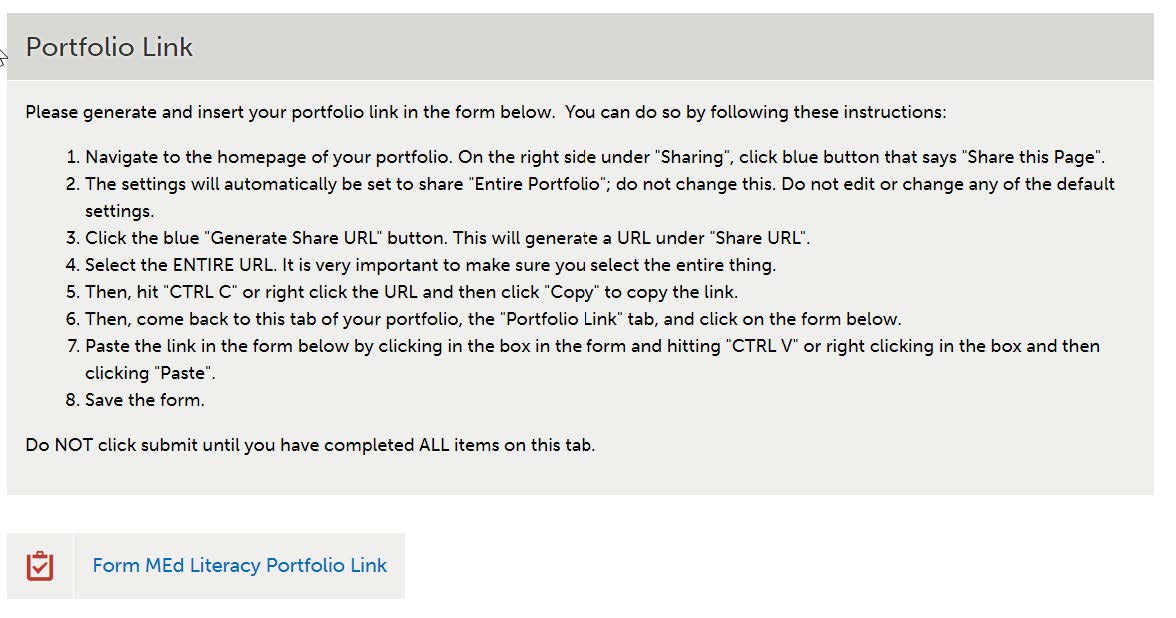
- Navigate back to the homepage of your portfolio by clicking “Table of Contents” at
the top.

- On the right side under "Sharing", click blue button that says, "Share this Page".
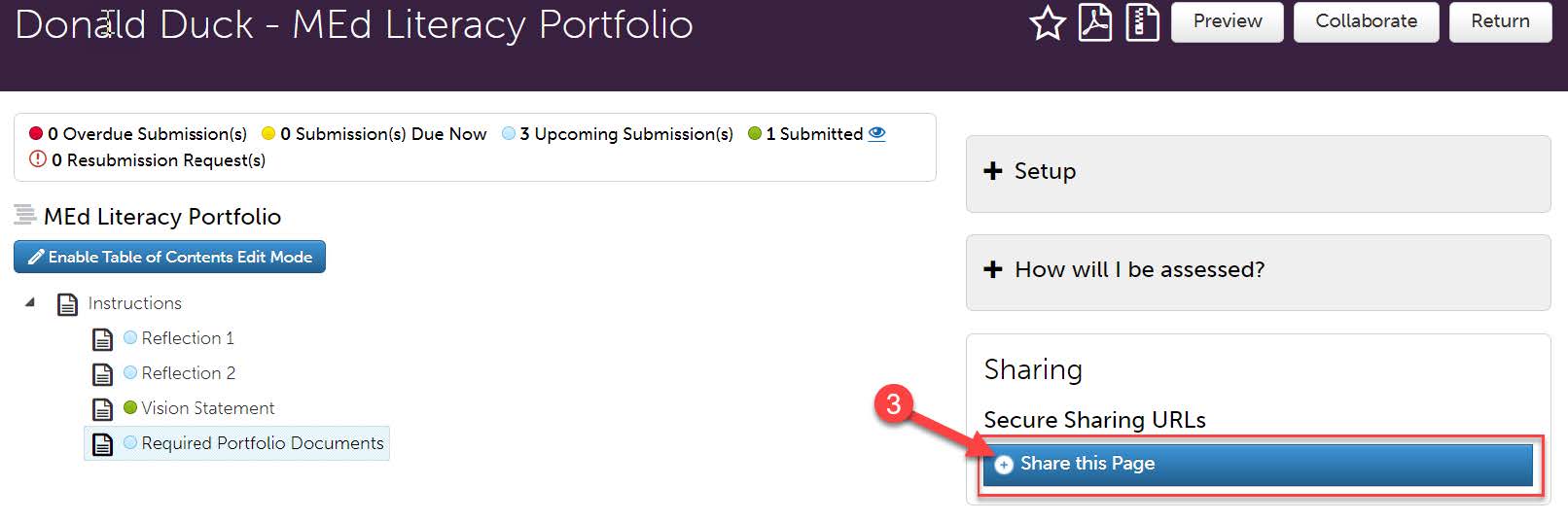
- The settings will automatically be set to share "Entire Portfolio"; DO NOT change this. DO NOT edit or change any of the default settings.
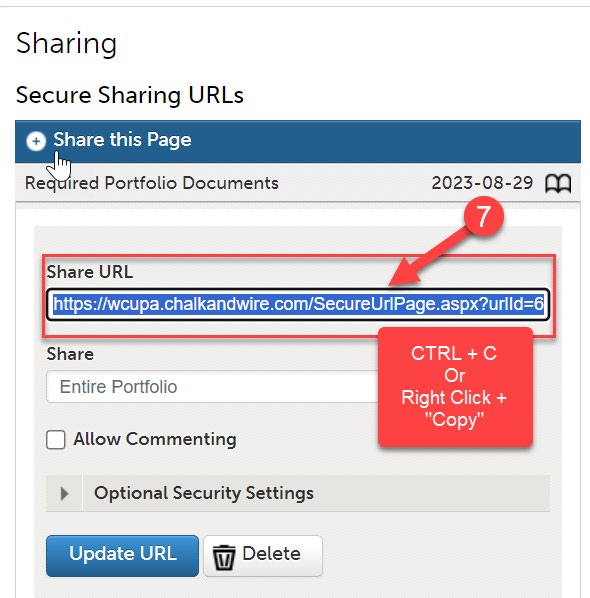
- Click the blue "Generate Share URL" button. This will generate a URL under "Share
URL".
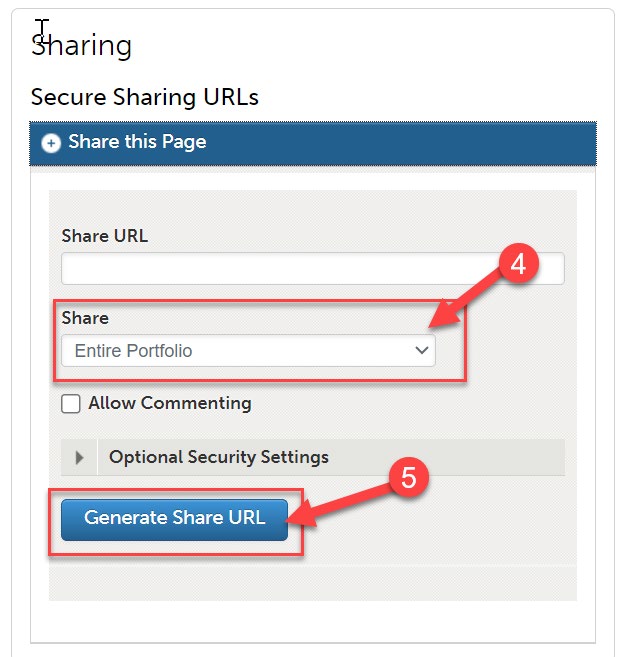
- Select the ENTIRE URL. It is very important to make sure you select the entire thing.
- Then, hit "CTRL C" or right click the URL and then click "Copy" to copy the link.
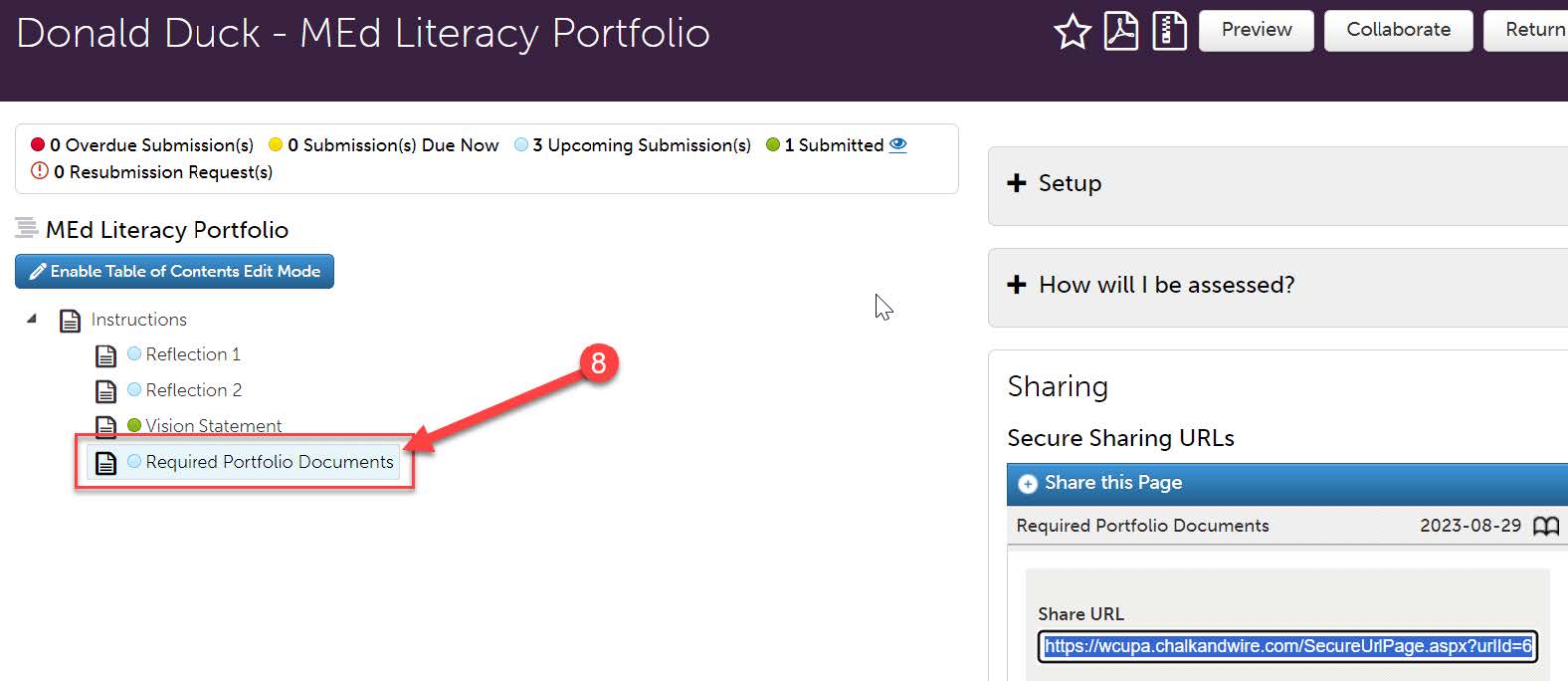
- Then, click on "Required Portfolio Documents".
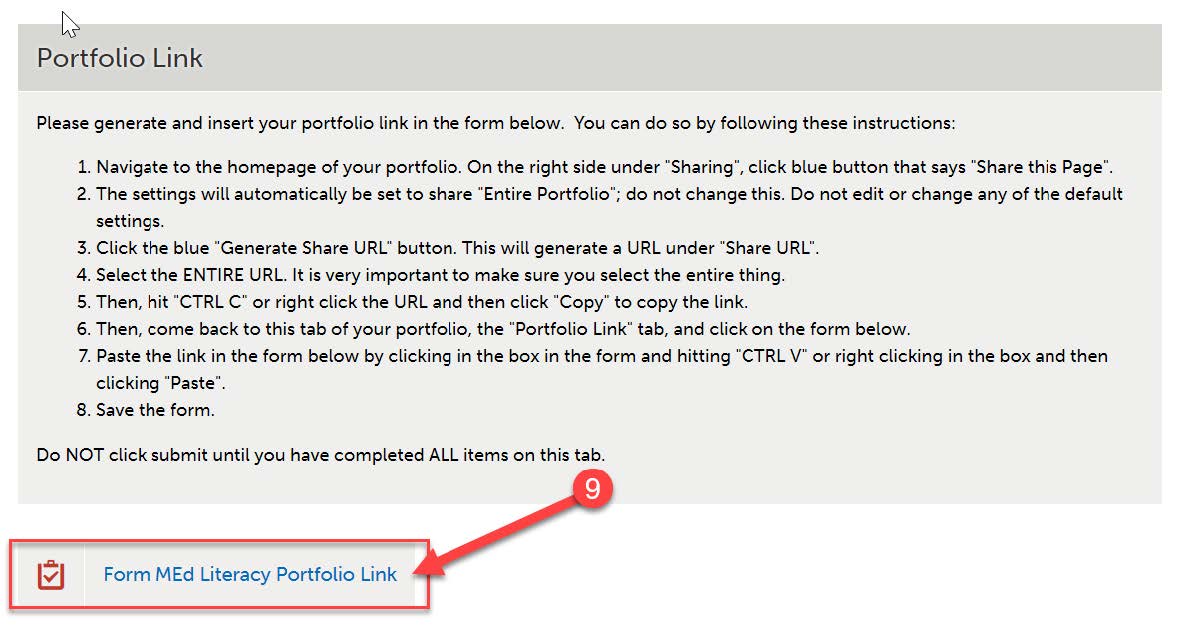
- Under “Portfolio Link,” click on “Form MEd Literacy Portfolio Link”.
- Paste the link in the form below by clicking in the box in the form and hitting "CTRL V" or right clicking in the box and then clicking "Paste".
- Then click “Save”.
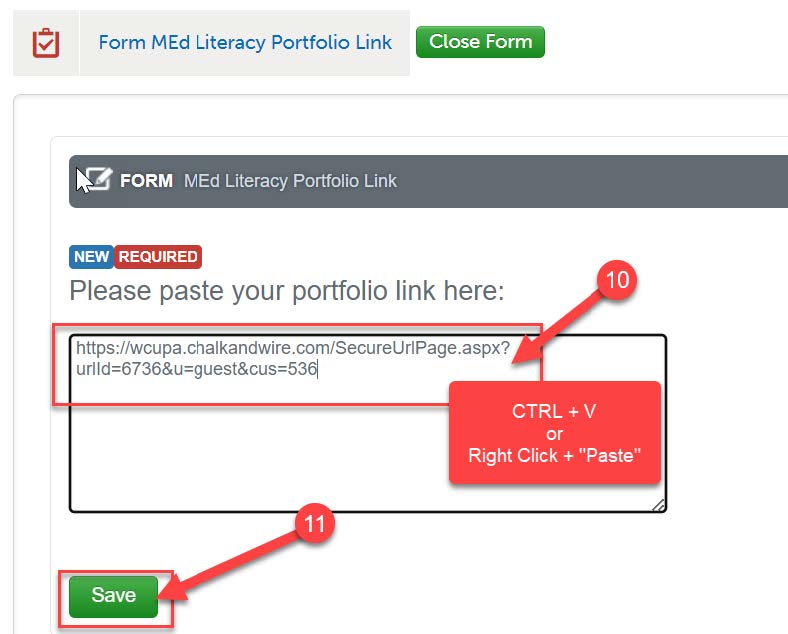
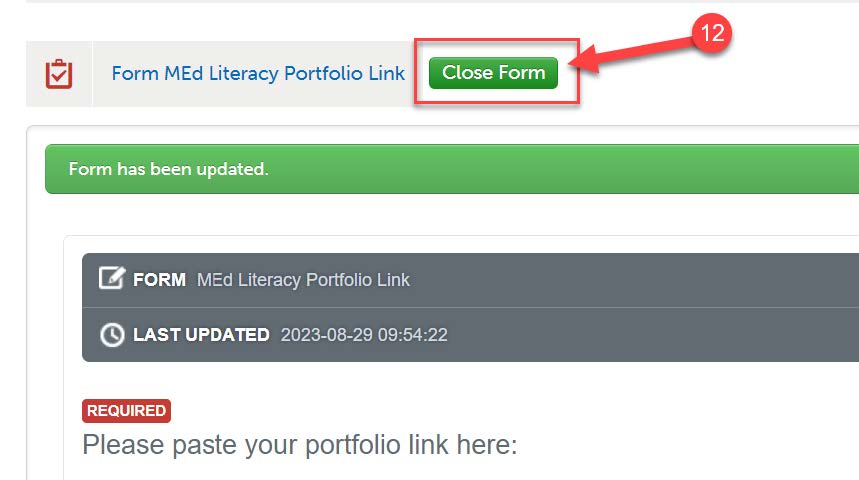
- Then, click “Close Form.”
- DO NOT click “Submit” on this page until you have completed ALL items on the page.
Portfolio Contract
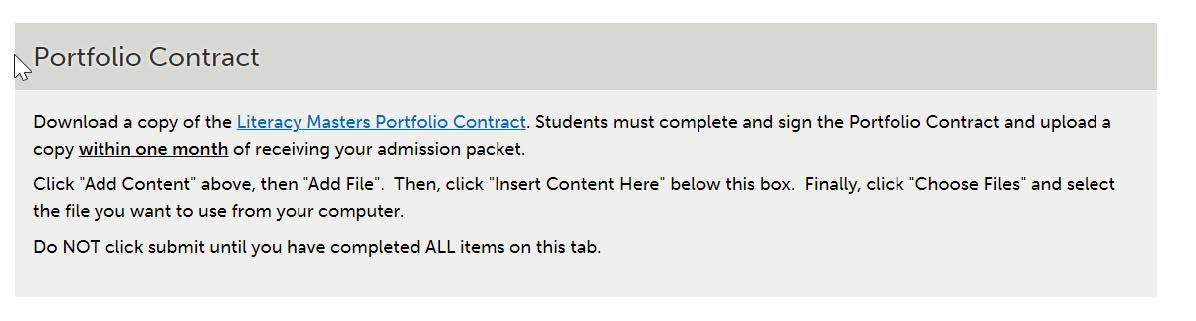
- Download a copy of the Literacy Masters Portfolio Contract. Complete and sign the Portfolio Contract and upload a copy to Anthology within one month of receiving your admission packet.
- To upload in Anthology, scroll to the “Portfolio Contract” section of the “Required
Portfolio Documents” page.
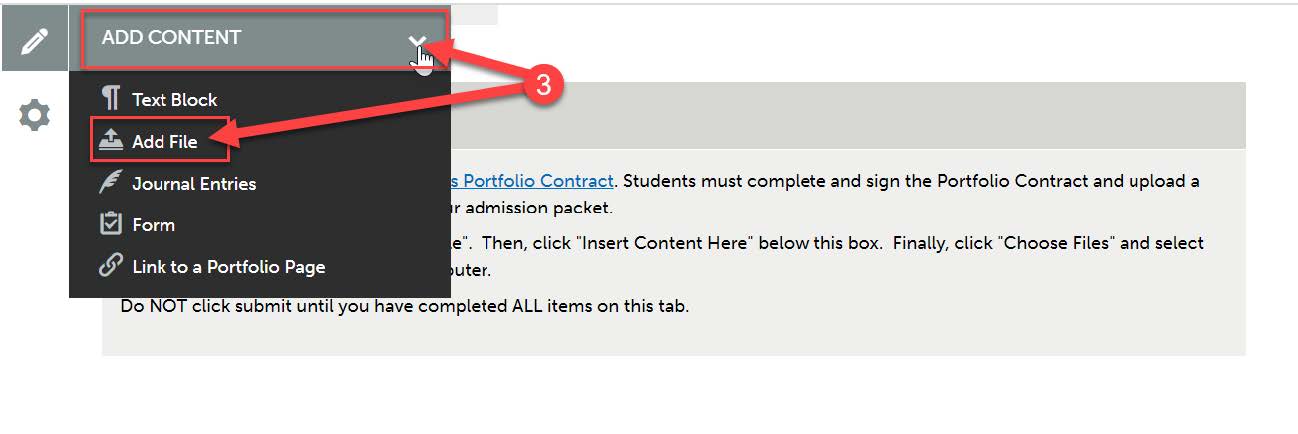
- Click "Add Content" above, then "Add File".
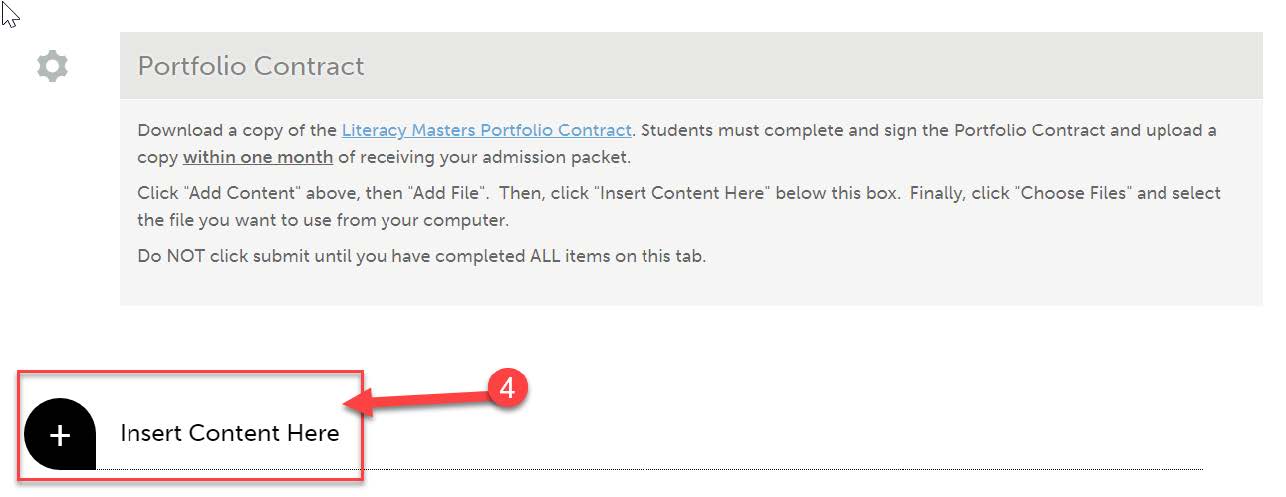
- Then, click "Insert Content Here" below the “Portfolio Contract” box.
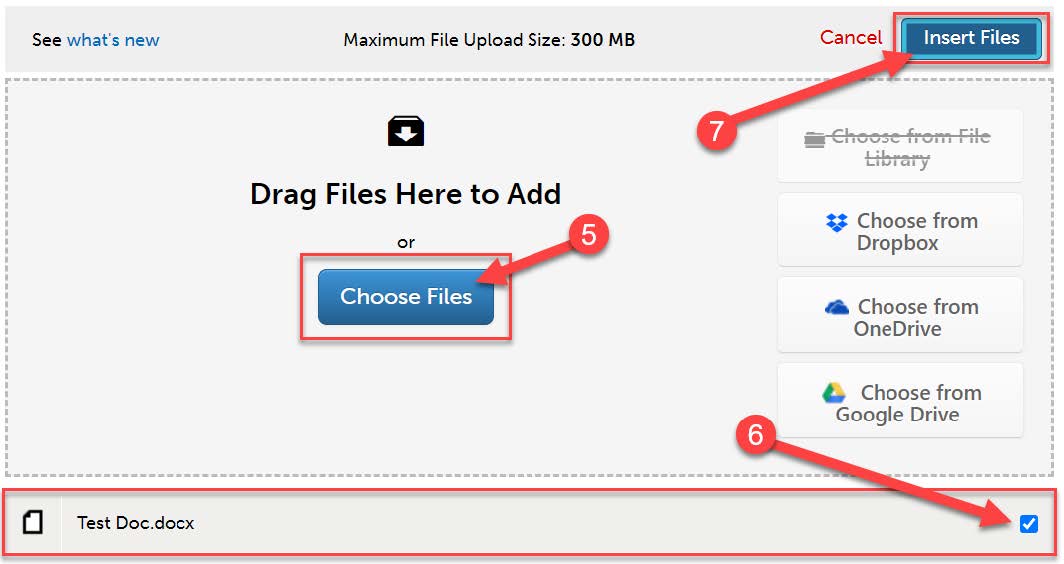
- Click “Choose Files.” Then, select the file(s) from your computer. You can upload multiple files if necessary.
- When the file is uploaded, it will appear below with a blue check mark next to it.
- Then, click “Insert Files”
- DO NOT click “Submit” on this page until you have completed ALL items on the page.
Degree Candidacy
- After completion of 12 - 15 credits, complete the application for admission to candidacy for the degree (Degree Candidacy) form.
- After you complete the Degree Candidacy form online, complete the “MEd Literacy Degree Candidacy Confirmation” form in Anthology.
- Scroll to the “Degree Candidacy” section of the “Required Portfolio Documents” page.
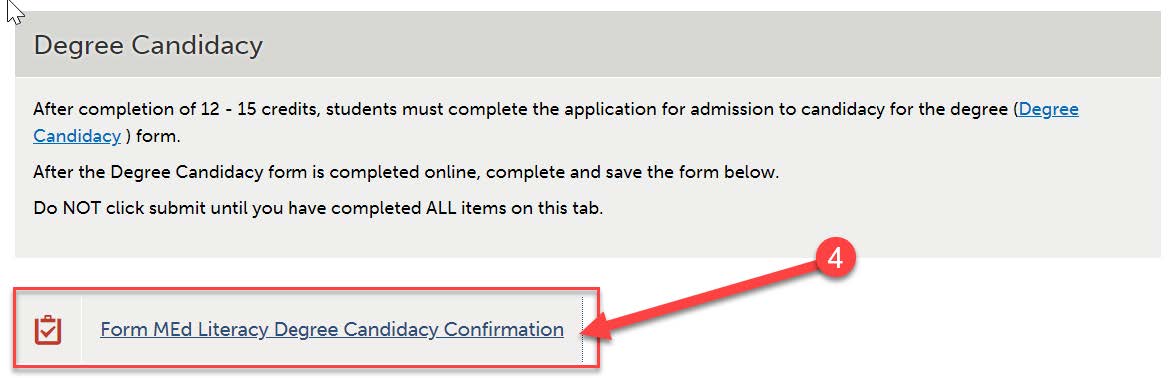
- Click on the “MEd Literacy Degree Candidacy Confirmation” form.
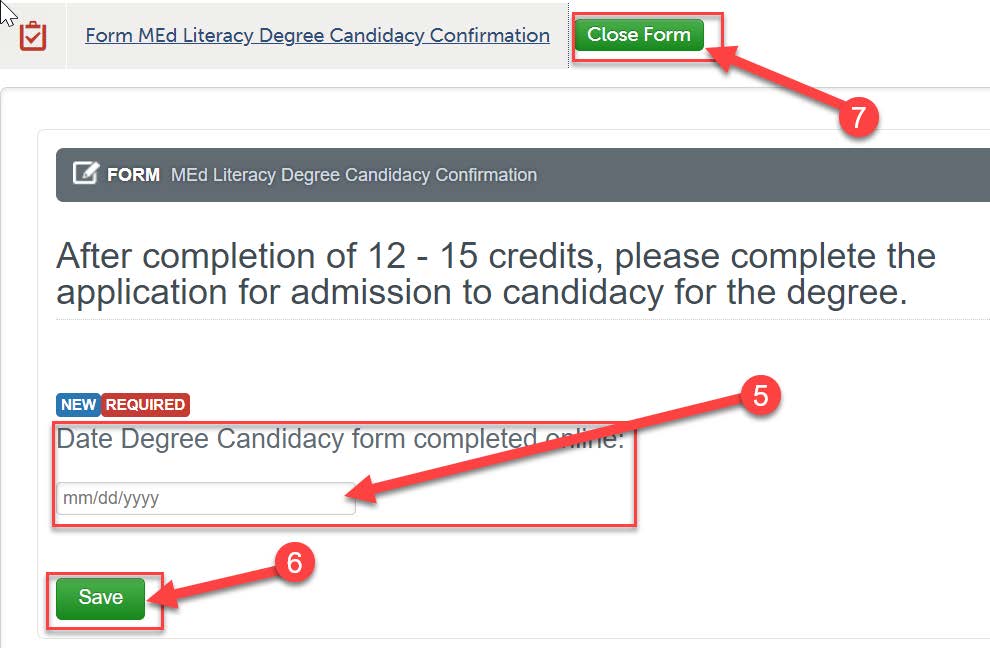
- Enter the date that you completed the Degree Candidacy form online.
- Click “Save”.
- Click “Close Form”.
- DO NOT click “Submit” on this page until you have completed ALL items on the page.
Artifacts
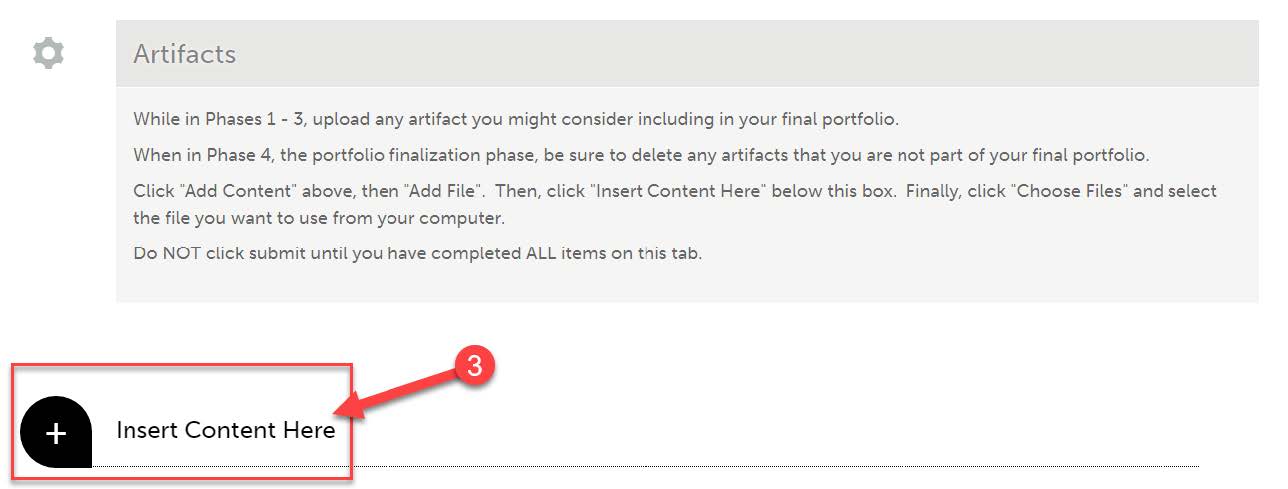
- While in Phases 1 - 3, you should upload any artifact you might consider including in your final portfolio into Anthology. When in Phase 4, the portfolio finalization phase, be sure to delete any artifacts that you are not part of your final portfolio.
- To upload artifacts to Anthology, scroll to the “Artifacts” section of the “Required
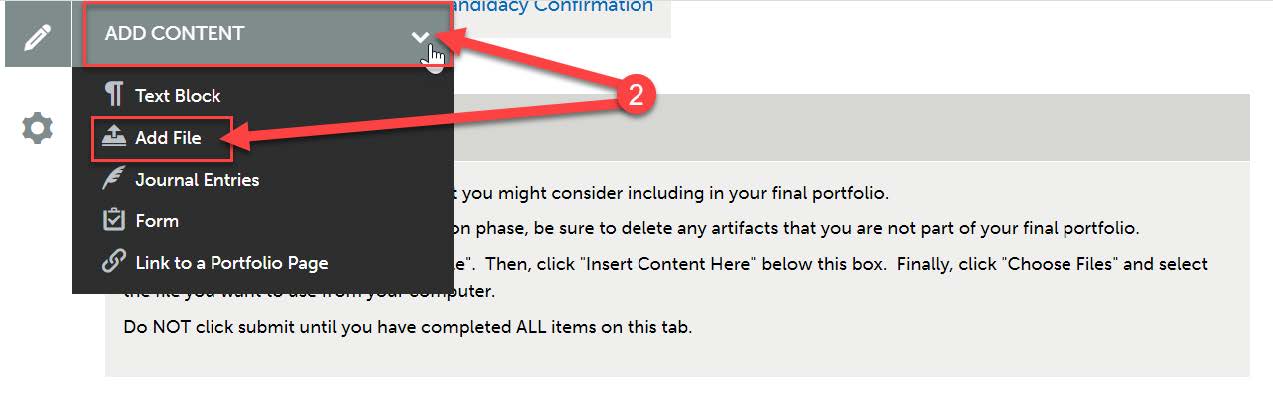
Portfolio Documents” page. Click “"Add Content" above, then "Add File".
- Then, click "Insert Content Here" below the “Portfolio Contract” box.
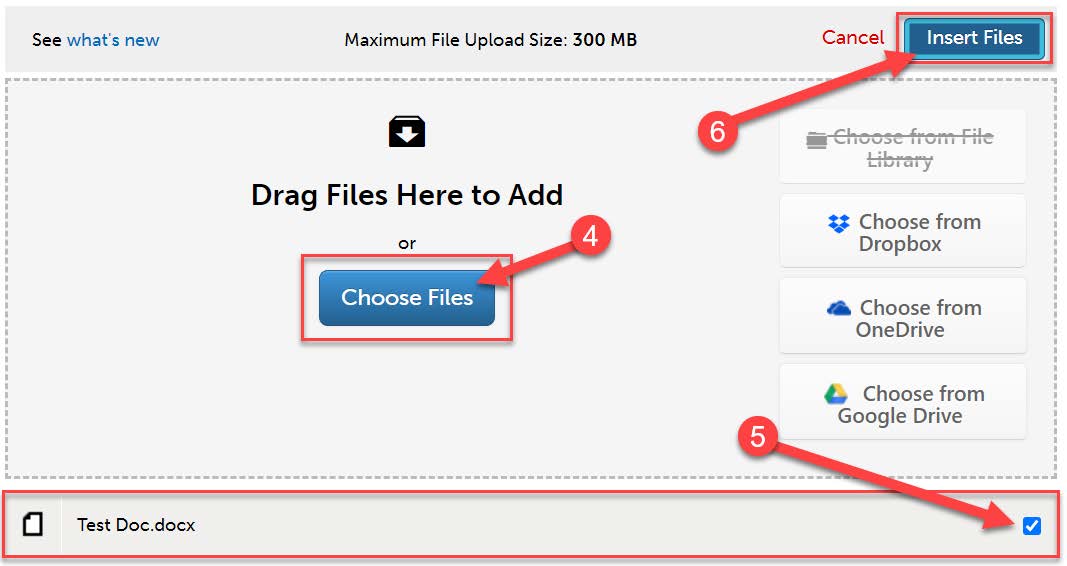
- Click “Choose Files.” Then, select the file(s) from your computer. You can upload multiple files if necessary.
- When the file is uploaded, it will appear below with a blue check mark next to it.
- Then, click “Insert Files”
- DO NOT click “Submit” on this page until you have completed ALL items on the page.
Contact Information
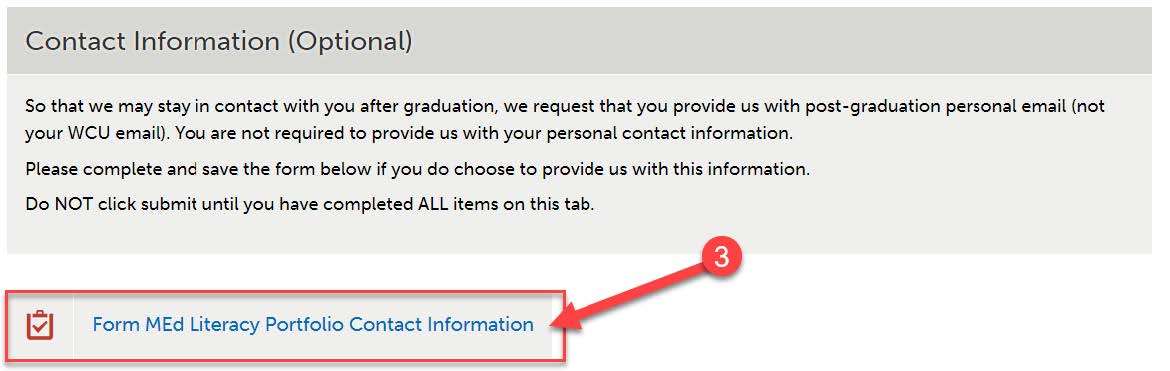
- So that we may stay in contact with you after graduation, we request that you provide us with post-graduation personal email (not your WCU email). You are not required to provide us with your personal contact information. This is optional.
- Scroll to the “Contact Information” section of the “Required Portfolio Documents” page.
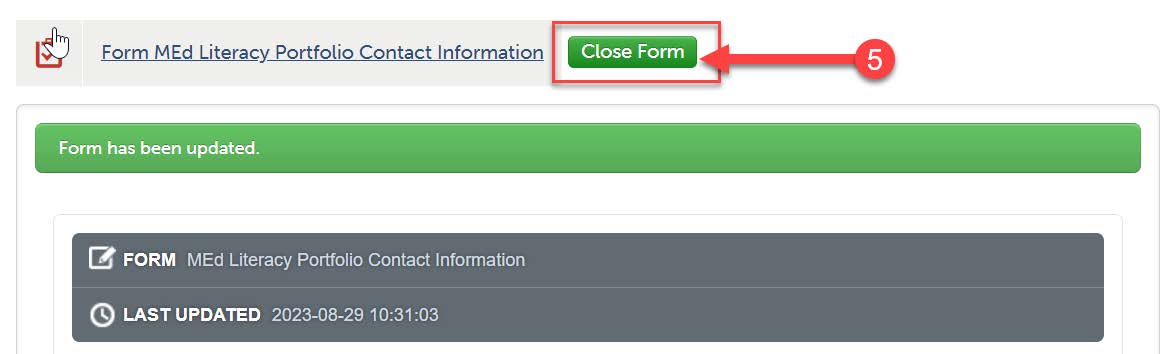
- Click on the “MEd Literacy Portfolio Contact Information” form.
- Complete the form. When you are finished, click “Save” at the bottom.
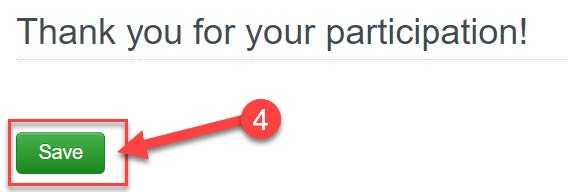
- Then “Close Form”
- DO NOT click “Submit” on this page until you have completed ALL items on the page.
Submitting Required Portfolio Documents Tab
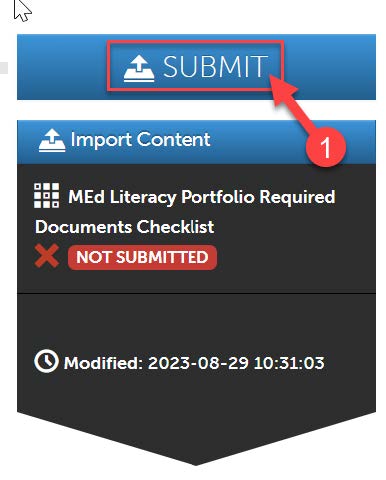
- Once you have completed all of the required items on the “Required Portfolio Documents”
tab, you are ready to submit. Scroll all the way back up to the top of the assignment
screen. Click “Submit”.
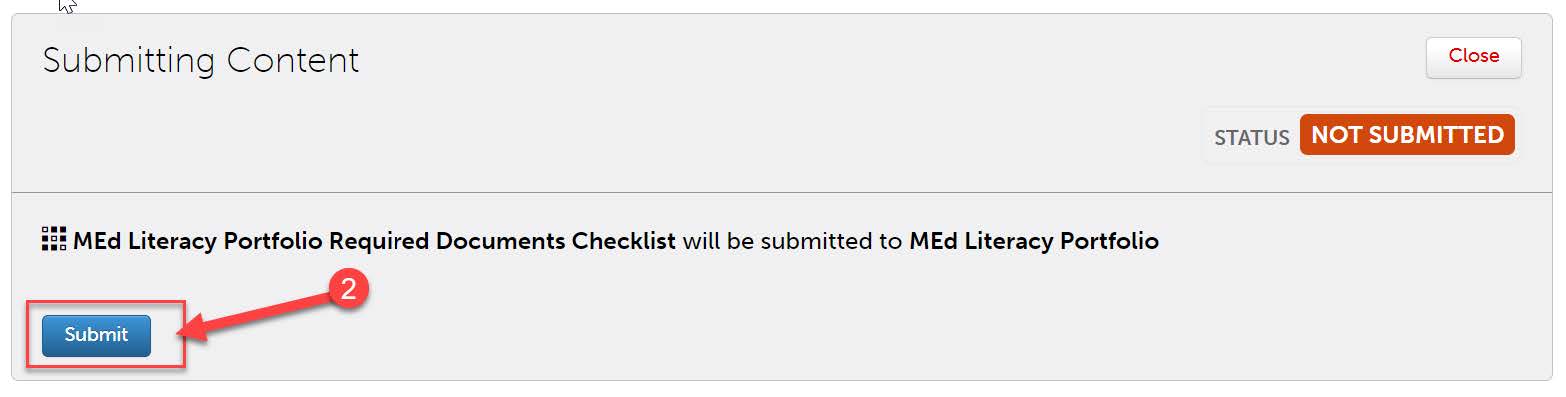
- Then, click “Submit” again.
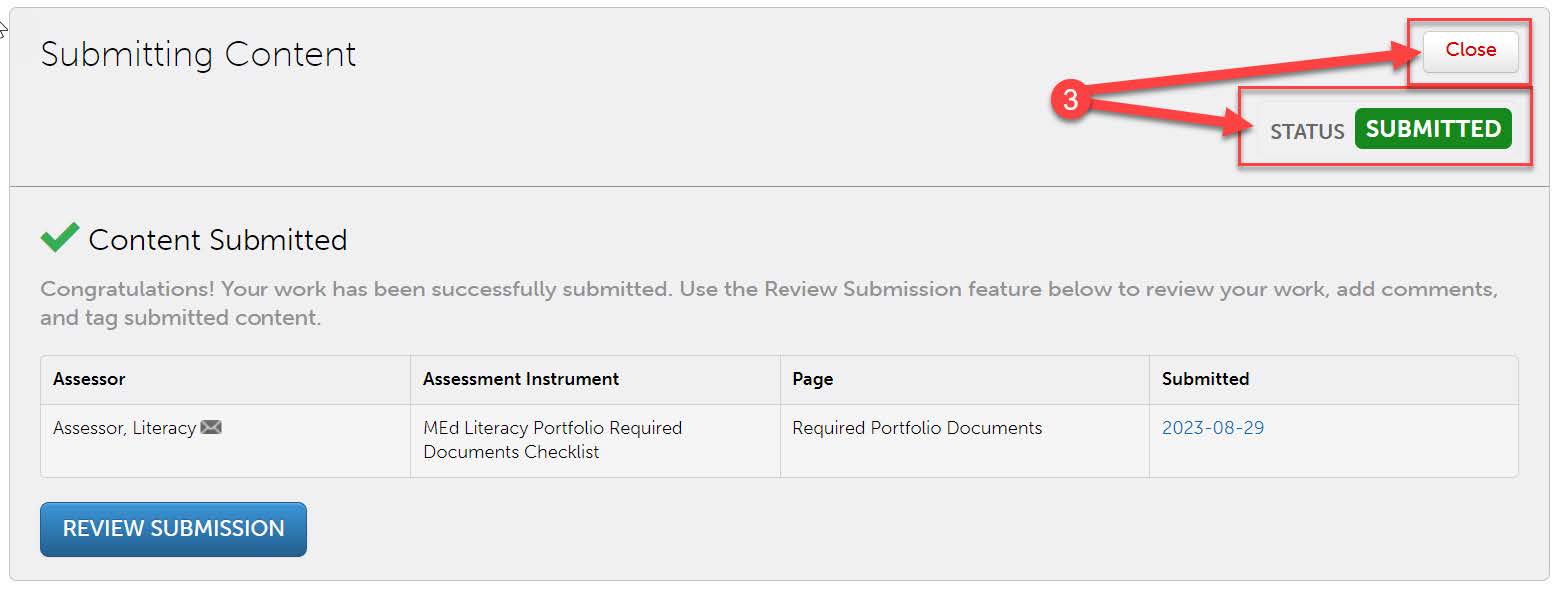
- You should see “Status: Submitted.” Then click “Close”.
Revisiting Your Saved Portfolio
- If you saved your portfolio and wish to revisit it, first click on the “Menu” tab on the left side.
- Click on “My Coursework.”
- Click on the name of the portfolio you wish to edit.
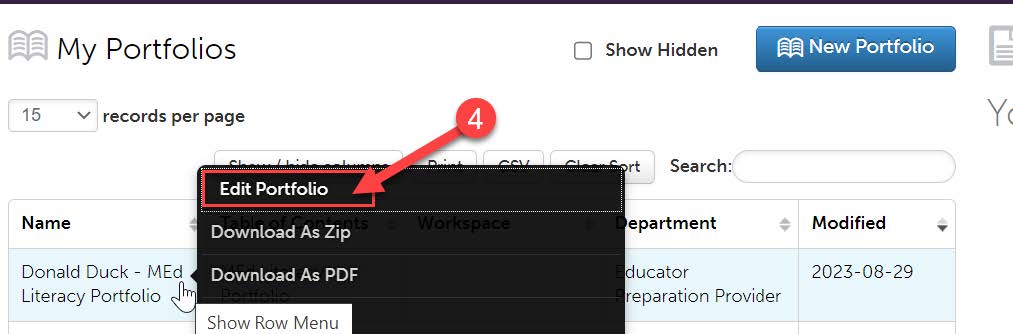
- A pop-up menu will appear. Click on “Edit Portfolio”.
- You can now view and edit your portfolio.
Viewing Your Scores
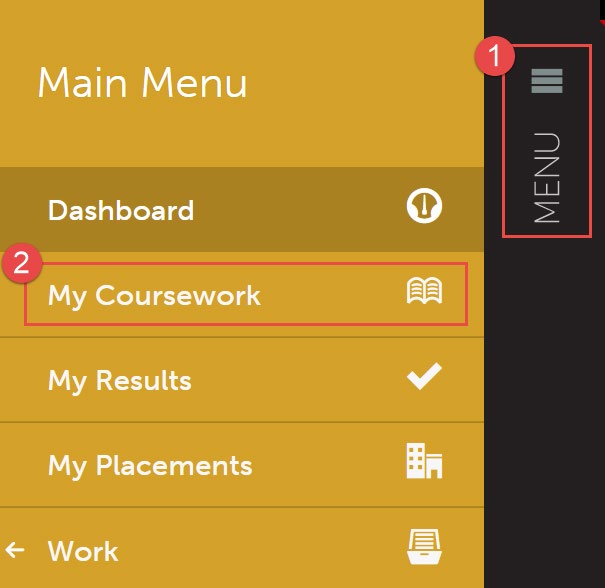
- Once your portfolio has been scored, you will be able to view your scores in your portfolio. First, click on the “Menu” tab on the left side.
- Click on “My Coursework.”
- Click on the name of the portfolio that contains the assignment you wish to view your
scores for.
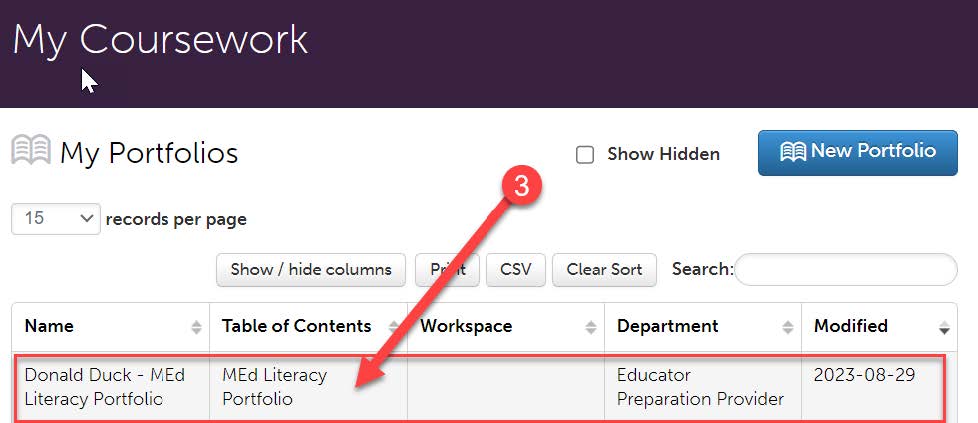
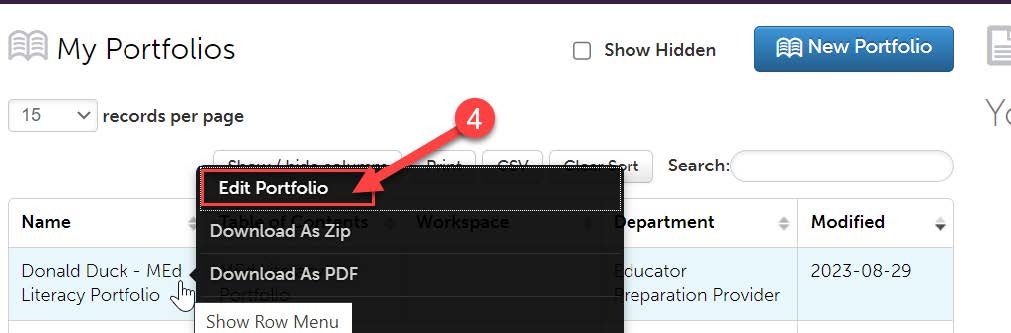
- A pop-up menu will appear. Click on “Edit Portfolio”.
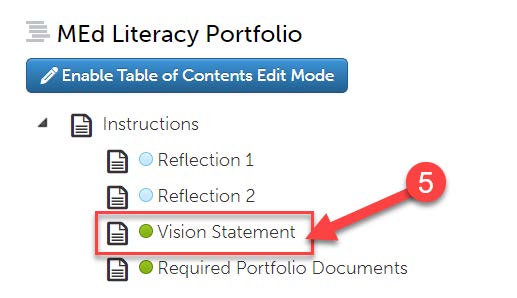
- Click on the name of the assignment you view to view your scores for.
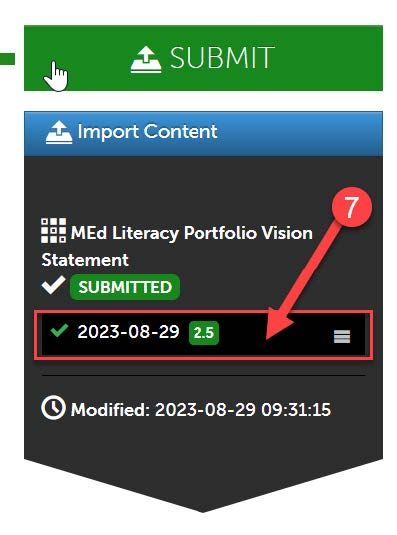
- Your mean score for the rubric will be located on the right side of the screen in
green.
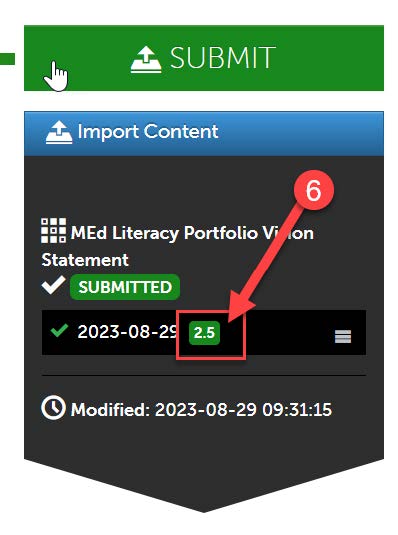
- To view the details of the rubric, how you were scored on individual criteria, and
any comments that your instructor left, click on that score.
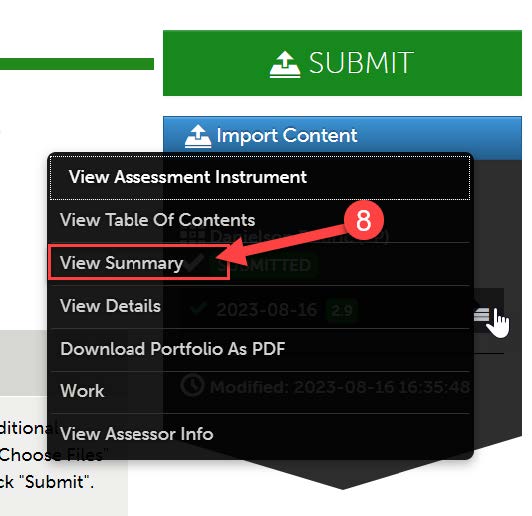
- A pop-up menu will appear. Then, click “View Summary”.
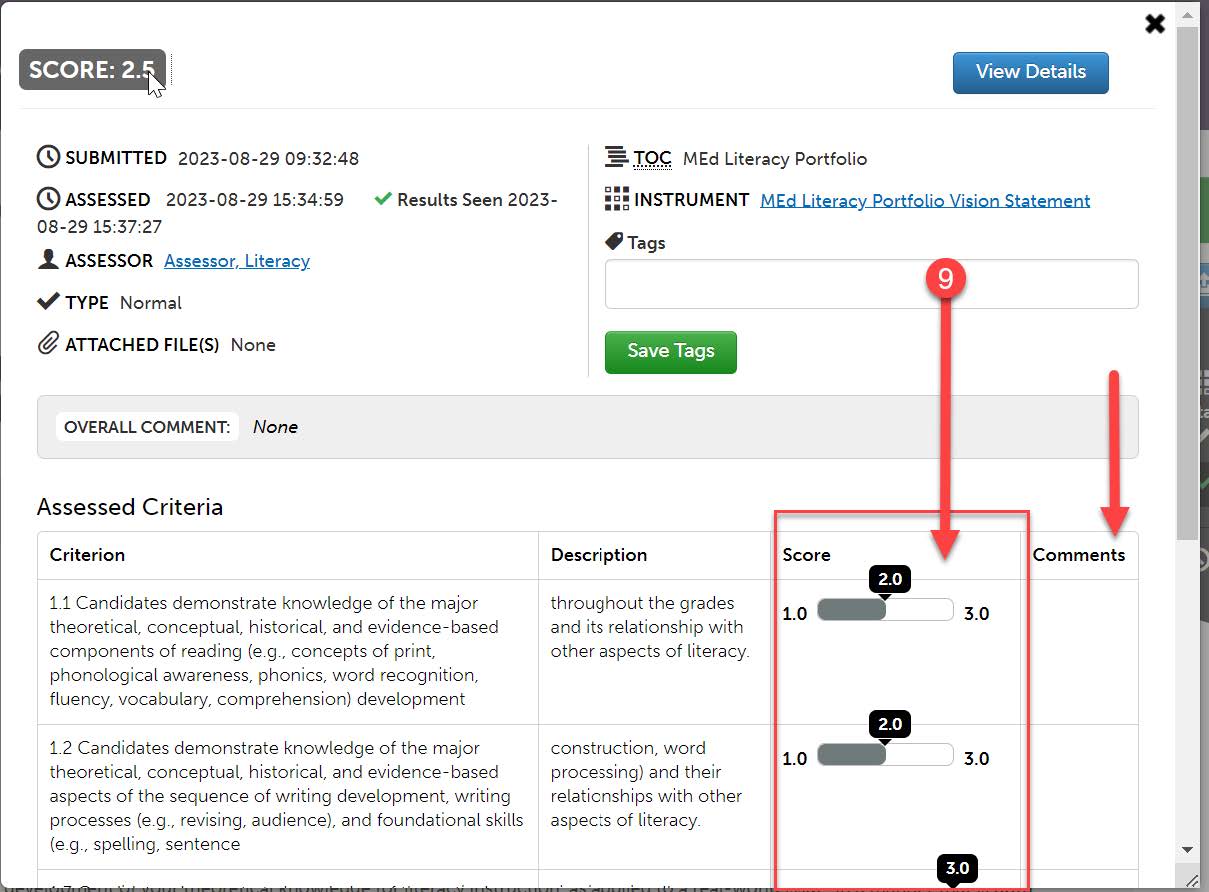
- You can now scroll through and review your scores on each criterion of the rubric.
If your instructor left any comments, they will be in the column to the far right.
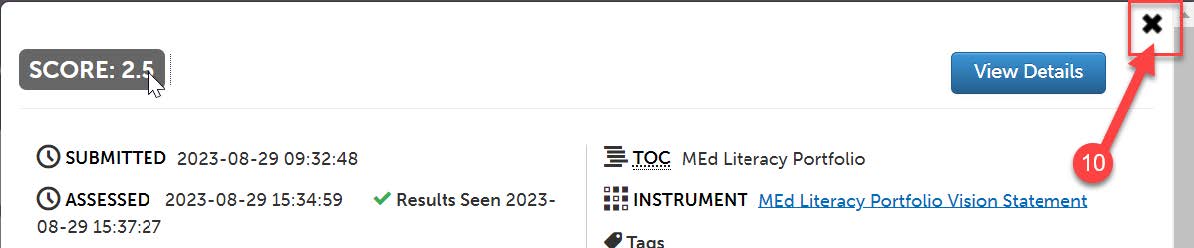
- Click the “X” to close when you are finished.